---
title: How to use Amazon RDS with AMIMOTO AMI WordPress
description: Amazon Relational Database Service is a web service that makes it easy to set up, operate, and scale a relational database in the cloud. It provides cost-efficient and resizable capacity while managin
---
[Skip to content](https://knowledge.amimoto-ami.com/en/knowledge/how-to-use-amazon-rds-with-amimoto-ami-wordpress#main-content)
English
Show submenu for translations
![Amimoto-dark-ogp.png\]](https://knowledge.amimoto-ami.com/hs-fs/hubfs/Amimoto-dark-ogp.png?height=40&name=Amimoto-dark-ogp.png)
- ホーム
- 製品
- 価格
- ブログ
- 会社
Open main navigation
Close main navigation
- ホーム
- 製品
- 価格
- ブログ
- 会社
- English
Show submenu for translations
- [https://amimoto-ami.com/](https://amimoto-ami.com/)
[https://amimoto-ami.com/](https://amimoto-ami.com/)
Hello. How can we help you?
- There are no suggestions because the search field is empty.
1. [Amimoto Help Center](https://knowledge.amimoto-ami.com/en/knowledge?hsLang=en)
2. [Amimoto AMI](https://knowledge.amimoto-ami.com/en/knowledge/amimoto-ami?hsLang=en)
3. [Tips](https://knowledge.amimoto-ami.com/en/knowledge/amimoto-ami?hsLang=en#tips)
# How to use Amazon RDS with AMIMOTO AMI WordPress
#### What is Amazon RDS
Amazon Relational Database Service is a web service that makes it easy to set up, operate, and scale a relational database in the cloud.
It provides cost-efficient and resizable capacity while managing time-consuming database administration tasks by automatically patching the database software and backing up your database, storing the backups for a user-defined retention period and enabling point-in-time recovery.
You can choose between MySQL, MariaDB, PostgreSQL, Oracle, Microsoft SQL Server, and the MySQL-compatible Amazon Aurora DB engine.
Thanks to an option called a Multi-AZ deployment you can run your DB instance in several Availability Zones. When you select this option, Amazon automatically provisions and maintains a synchronous standby replica of your DB instance in a different Availability Zone. The primary DB instance is synchronously replicated across Availability Zones to the standby replica to provide data redundancy, failover support, eliminate I/O freezes, and minimize latency spikes during system backups.
#### Advantages
- Scale your CPU, IOPS, and storage space
- Snapshot-based on demand
and automatic backups
- Multi Availability Zones deployment
- Secondary synchronous instance in
case the primary fails
#### Disadvantages
- No shell access to the DB instance
- Restricted user privileges
- Disabled replication in MySQL
- Weekly 4-hour maintenance window
- RDS Instance cannot be stopped
#### Creating a MySQL server in Amazon RDS
For more information, refer to the following URL:
[Creating a MySQL DB Instance and Connecting to a Database on a MySQL DB Instance](https://docs.aws.amazon.com/AmazonRDS/latest/UserGuide/CHAP_GettingStarted.CreatingConnecting.MySQL.html)
Here, we will describe the important items to input in every step.
#### Step: Specify DB Details
#### Multi-AZ Deployment
If you want to create a DB Instance in a single availability zone, select \[No\].
In \[Yes\], Multi-AZ deployment and MySQL are located in multiple availability zones, one of them becomes a cold standby state.
When failure occurs on master side, it will be switched to the MySQL server on the slave side automatically. It means fault tolerance is high but note that the price will be doubled.
#### Allocated Storage
Disk space is used by DB.
#### DB Instance Identifier
DB instance name must be unique in your account.
#### Master Username, Master Password, Confirm Password
Specify the username and password when connecting to MySQL.
#### Step: Configure Advanced Settings
#### VPC
Choose any VPC, usually it’s the default VPC.
#### DB Security Groups
Choose a security group RDS belongs to.
Please refer to the following URL:
[Working with DB Security Groups](https://docs.aws.amazon.com/AmazonRDS/latest/UserGuide/USER_WorkingWithSecurityGroups.html)
In this security group, you must allow access to port 3306 from which AMIMOTO AMI security group belongs to.
#### Database Name
The database will be automatically created in RDS when you input a database name.
If you don’t input, start RDS then connect to MySQL client and run
create database
to create database.
### EC2 to RDS Connection Confimation
When RDS is activated, make sure if you can ssh connect to AMIMOTO AMI instance.
```
$ mysql -h {endpoint} -P 3306 -u {mymasteruser} -p
```
You can find Endpoint in the RDS information of AWS Management Console.
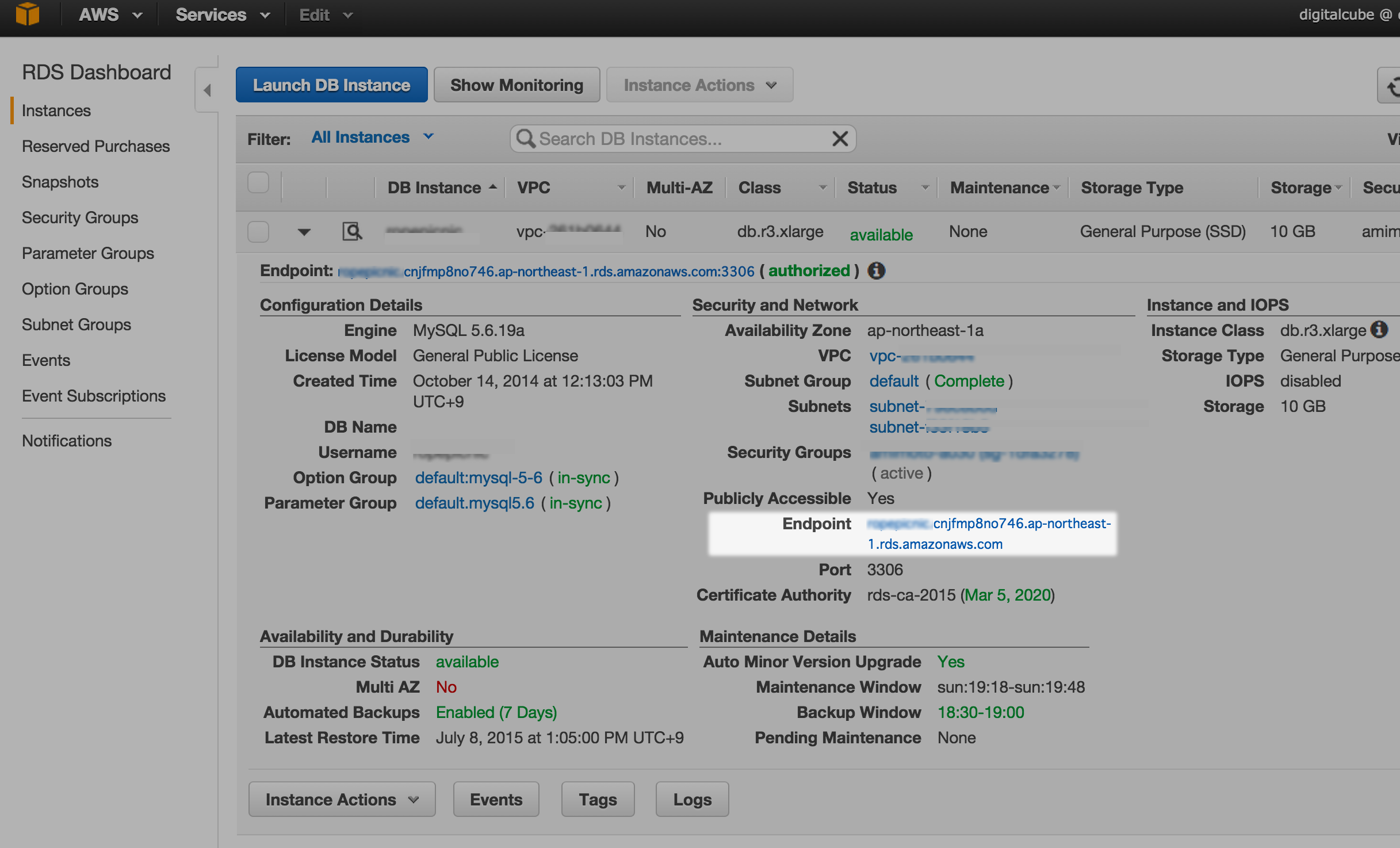
mymasteruser and password are specified when you want to create RDS Master Username, Master Password.
### Data Migration and wp-config.php rewriting
If you are migrating MySQL data to RDS in AMIMOTO AMI, perform the following steps below:
#### Export data via wp-cli
Using wp-cli, you can export the DB data.
```
$ wp --path=/path/to/wordpress db export
```
/path/to/wordpress is the directory where WordPress is installed.
In AMIMOTO AMI, it’s usually in /var/www/vhosts/{instance\_id} .
#### Importing to RDS by mysql command
Run the mysql command to import the file which is exported by wp-cli to RDS.
```
$ mysql -h {endpoint} -P 3306 -u {mymasteruser} -p {databasename} < dump.sql
```
#### Rewriting wp-config.php
Please rewrite the following in wp-config.php :
```
// ** MySQL settings - You can get this info from your web host ** //$db_data = false;if ( file_exists('/opt/aws/cloud_formation.json') ) { $db_data = json_decode(file_get_contents('/opt/aws/cloud_formation.json'), true); if ( isset($db_data['rds']) ) { $db_data = $db_data['rds']; $db_data['host'] = $db_data['endpoint'] . ':' . $db_data['port']; }}if ( !$db_data ) { $db_data = array( 'database' => 'RDS_DATABASE_NAME_HERE', 'username' => 'RDS_USER_NAME_HERE', 'password' => 'RDS_PASSWORD_HERE', 'host' => 'RDS_ENDPOINT_HERE', );}
```
- RDS\_DATABASE\_NAME\_HERE : Database Name which was set in Configure Advanced Settings
- RDS\_USER\_NAME\_HERE : Master Username which was set in Specify DB Details
- RDS\_PASSWORD\_HERE : Master Password which was set in Specify DB Details
- RDS\_ENDPOINT\_HERE : RDS endpoint
When you set as above in wp-config.php, let’s check if we can connect to WordPress.
#### Stop MySQL process in AMIMOTO AMI
Since MySQL was moved to RDS, MySQL process in AMIMOTO AMI is no longer necessary.
You can stop the MySQL server and turn off automatic start of MySQL server through the following process:
#### Rewrite the configuration file
In AMIMOTO AMI, the middleware settings use chef-solo, where they are described in /opt/local/amimoto.json
To stop starting MySQL, please rewrite the file as follows:
```
{ "nginx" : { "config" : { "user" : "nginx", "group" : "nginx" } }, "php" : { "config" : { "user" : "nginx", "group" : "nginx" } }, "mysql" : { "enabled" : false }, "phpfpm" : { "enabled" : true }, "run_list" : [ "recipe[amimoto]" ]}
```
For AMIMOTO AMI HHVM version, rewrite as follows:
```
{ "nginx" : { "config" : { "user" : "nginx", "group" : "nginx" } }, "php" : { "config" : { "user" : "nginx", "group" : "nginx" } }, "mysql" : { "enabled" : false }, "hhvm" : { "enabled" : true }, "run_list" : [ "recipe[amimoto]" ]}
```
Then run the following command:
```
$ sudo /opt/local/provision$ service mysql stop
```
Then MySQL process in AMIMOTO AMI no longer works.
#### Slide
- [Amimoto Managed Hosting](https://knowledge.amimoto-ami.com/en/knowledge/amimoto-managed-hosting?hsLang=en#main-content)
- [Basics](https://knowledge.amimoto-ami.com/en/knowledge/amimoto-managed-hosting?hsLang=en#basics)
- [Amimoto Essential Training](https://knowledge.amimoto-ami.com/en/knowledge/amimoto-managed-hosting?hsLang=en#amimoto-essential-training)
- [Migration tips for AMIMOTO Managed Hosting](https://knowledge.amimoto-ami.com/en/knowledge/amimoto-managed-hosting?hsLang=en#migration-tips-for-amimoto-managed-hosting)
- [Amimoto Dashboard Tips](https://knowledge.amimoto-ami.com/en/knowledge/amimoto-managed-hosting?hsLang=en#amimoto-dashboard-tips)
- [Connecting to the Server](https://knowledge.amimoto-ami.com/en/knowledge/amimoto-managed-hosting?hsLang=en#connecting-to-the-server)
- [Account and Billing](https://knowledge.amimoto-ami.com/en/knowledge/amimoto-managed-hosting?hsLang=en#account-and-billing)
- [Trouble shooting](https://knowledge.amimoto-ami.com/en/knowledge/amimoto-managed-hosting?hsLang=en#trouble-shooting)
- [WordPress Plugins](https://knowledge.amimoto-ami.com/en/knowledge/amimoto-managed-hosting?hsLang=en#wordpress-plugins)
- [Tips for DNS Vendors](https://knowledge.amimoto-ami.com/en/knowledge/amimoto-managed-hosting?hsLang=en#tips-for-dns-vendors)
- [Email](https://knowledge.amimoto-ami.com/en/knowledge/amimoto-managed-hosting?hsLang=en#email)
- [CDN and Cache control](https://knowledge.amimoto-ami.com/en/knowledge/amimoto-managed-hosting?hsLang=en#cdn-and-cache-control)
- [Server & AWS Management](https://knowledge.amimoto-ami.com/en/knowledge/amimoto-managed-hosting?hsLang=en#server-aws-management)
- [Integration](https://knowledge.amimoto-ami.com/en/knowledge/amimoto-managed-hosting?hsLang=en#integration)
- [Development](https://knowledge.amimoto-ami.com/en/knowledge/amimoto-managed-hosting?hsLang=en#development)
- [Amimoto AMI](https://knowledge.amimoto-ami.com/en/knowledge/amimoto-ami?hsLang=en#main-content)
- [Getting Started with Amimoto-AMI](https://knowledge.amimoto-ami.com/en/knowledge/amimoto-ami?hsLang=en#getting-started-with-amimoto-ami)
- [Basics](https://knowledge.amimoto-ami.com/en/knowledge/amimoto-ami?hsLang=en#basics)
- [Connection to Amimoto AMI](https://knowledge.amimoto-ami.com/en/knowledge/amimoto-ami?hsLang=en#connection-to-amimoto-ami)
- [Tips](https://knowledge.amimoto-ami.com/en/knowledge/amimoto-ami?hsLang=en#tips)
- [FAQs](https://knowledge.amimoto-ami.com/en/knowledge/amimoto-ami?hsLang=en#faqs)
- [Trouble shooting](https://knowledge.amimoto-ami.com/en/knowledge/amimoto-ami?hsLang=en#trouble-shooting)
- [Getting Started with Amimoto JIN-KEI](https://knowledge.amimoto-ami.com/en/knowledge/amimoto-ami?hsLang=en#getting-started-with-amimoto-jin-kei)
- [Tips for JINKEI](https://knowledge.amimoto-ami.com/en/knowledge/amimoto-ami?hsLang=en#tips-for-jinkei)
- [Support](https://knowledge.amimoto-ami.com/en/knowledge/amimoto-ami?hsLang=en#support)
- [\[EN\] Amimoto Managed Hosting](https://knowledge.amimoto-ami.com/en/knowledge/en-amimoto-managed-hosting?hsLang=en#main-content)
- [Company and Guidelines](https://knowledge.amimoto-ami.com/en/knowledge/en-amimoto-managed-hosting?hsLang=en#company-and-guidelines)
- ホーム
- 製品
- 価格
- ブログ
- 会社
[](https://ja.amimoto-ami.com/)
Amimoto Help Center
Copyright © 2026, 株式会社デジタルキューブ