---
title: How to set up New JINKEI stack
description: How to set up New JINKEI stack Tomohyco Tsunoda Login to AWS Console i. Select Delivery Method ii. Software Version iv. Click [Continue to Launch] Choose [Launch CloudFormation] then click [Launch]
---
[Skip to content](https://knowledge.amimoto-ami.com/en/knowledge/how-to-set-up-new-jinkei-stack#main-content)
English
Show submenu for translations
![Amimoto-dark-ogp.png\]](https://knowledge.amimoto-ami.com/hs-fs/hubfs/Amimoto-dark-ogp.png?height=40&name=Amimoto-dark-ogp.png)
- ホーム
- 製品
- 価格
- ブログ
- 会社
Open main navigation
Close main navigation
- ホーム
- 製品
- 価格
- ブログ
- 会社
- English
Show submenu for translations
- [https://amimoto-ami.com/](https://amimoto-ami.com/)
[https://amimoto-ami.com/](https://amimoto-ami.com/)
Hello. How can we help you?
- There are no suggestions because the search field is empty.
1. [Amimoto Help Center](https://knowledge.amimoto-ami.com/en/knowledge?hsLang=en)
2. [Amimoto AMI](https://knowledge.amimoto-ami.com/en/knowledge/amimoto-ami?hsLang=en)
3. [Getting Started with Amimoto JIN-KEI](https://knowledge.amimoto-ami.com/en/knowledge/amimoto-ami?hsLang=en#getting-started-with-amimoto-jin-kei)
# How to set up New JINKEI stack
How to set up New JINKEI stack Tomohyco Tsunoda
### Table of contents
1. Requirements
2. Subscribe JINKEI Stack
3. Create CloudFormation JINKEI Stack
4. Get Certificate's ARN
5. Update CloudFormation settings
6. Setup WordPress
7. Assign the domain name to CloudFormation Stack to make it public
8. Update DNS record of the domain name
### Requirements
- AWS account
- DNS server (e.g. Route 53, Cloudflare, GoDaddy)
- Domain name (e.g. jinkei.example.com)
- Certificate ARN of the domain name to attach to CloudFront (e.g. arn:aws:acm:us-east-1:123456789123:certificate/abcd1234-efgh-5678-jlkm-opqrstuvwxy)
### Phase 1. Subscribe JINKEI Single
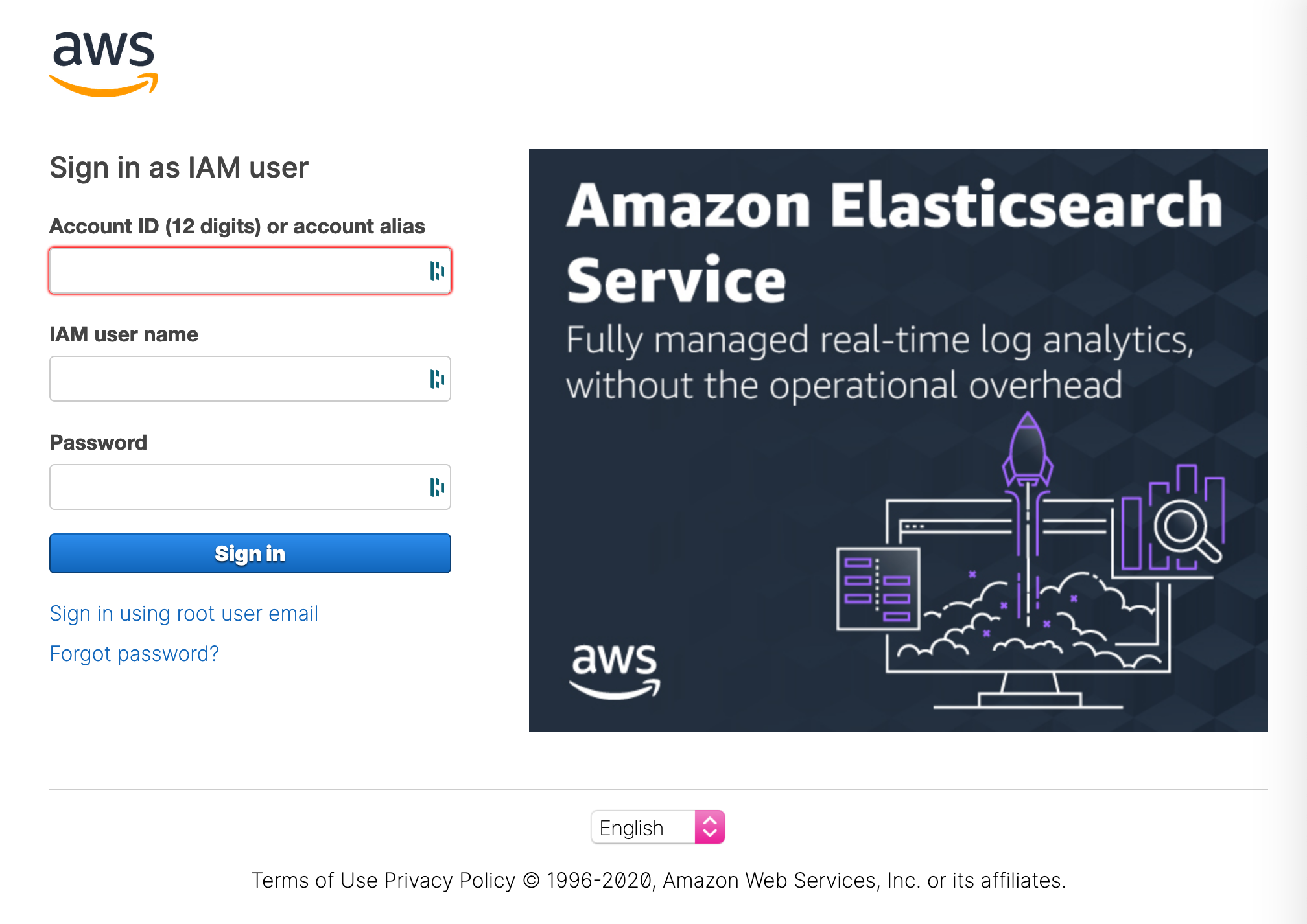
[Login to AWS Console](https://console.aws.amazon.com/cloudformation)
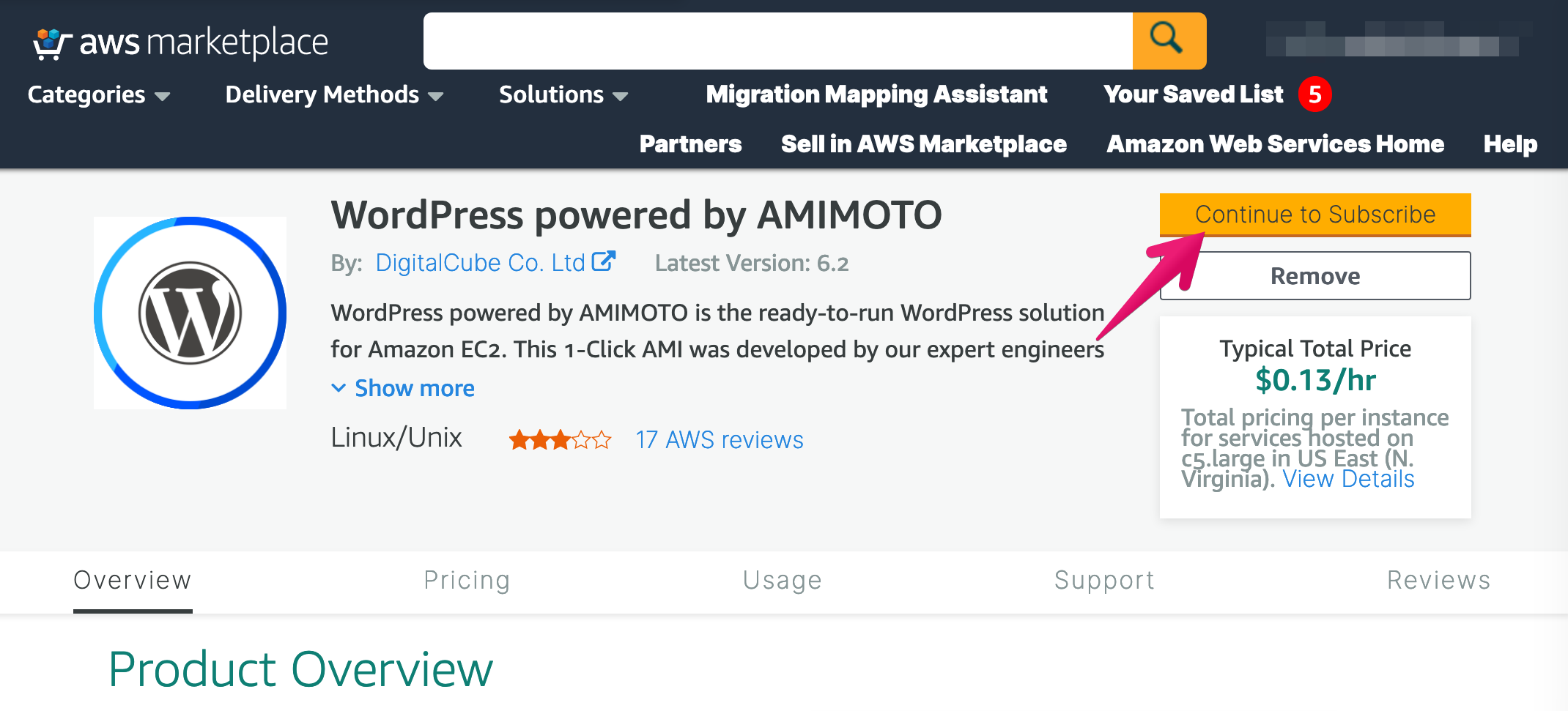
#### Navigate to [WordPress powered by AMIMOTO](https://aws.amazon.com/marketplace/pp/B00LWHVJH8) and click \[Continue to Subscribe\]
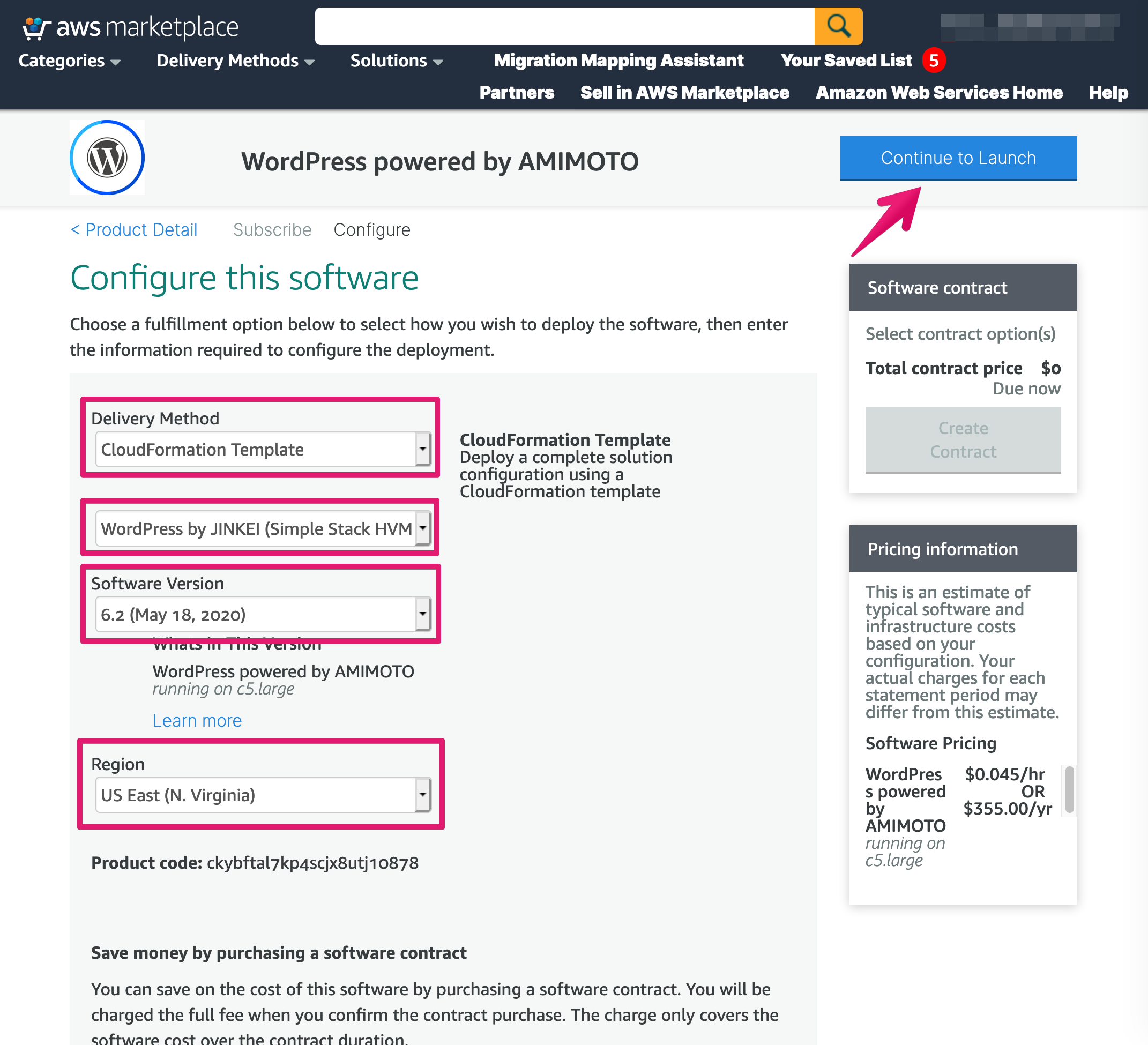
#### Configure template
**i. Select Delivery Method**
- Choose \[CloudFormation Template\] in Select Fulfilment Option
- Choose \[WordPress by JINKEI (Simple Stack HVM Aurora\] or \[WordPress powered by JINKEI (Simple Stack HVM\]
**ii. Software Version**
- Choose latest
#### iii. Region
- Anywhere you demand
**iv. Click \[Continue to Launch\]**
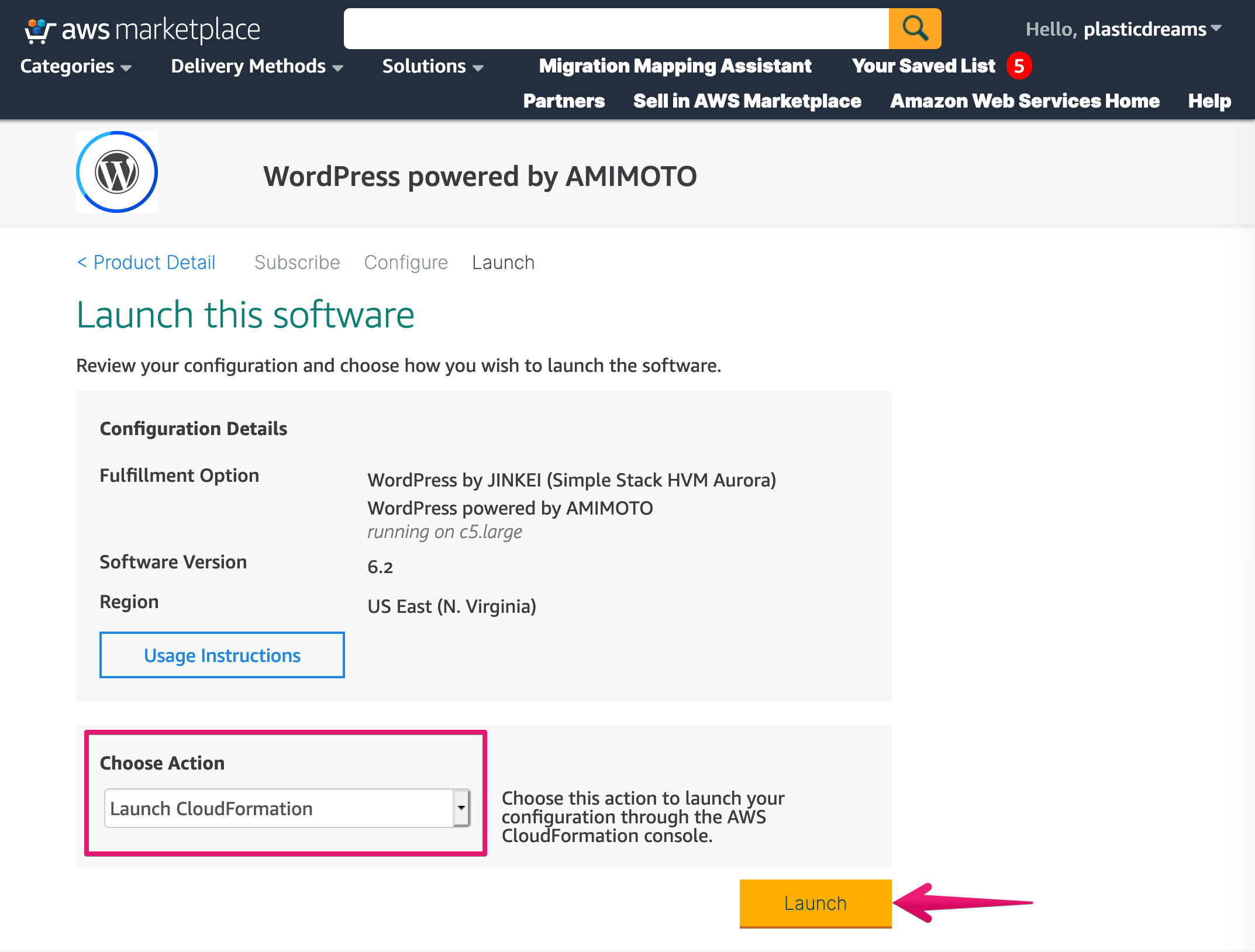
#### Select action and launching software
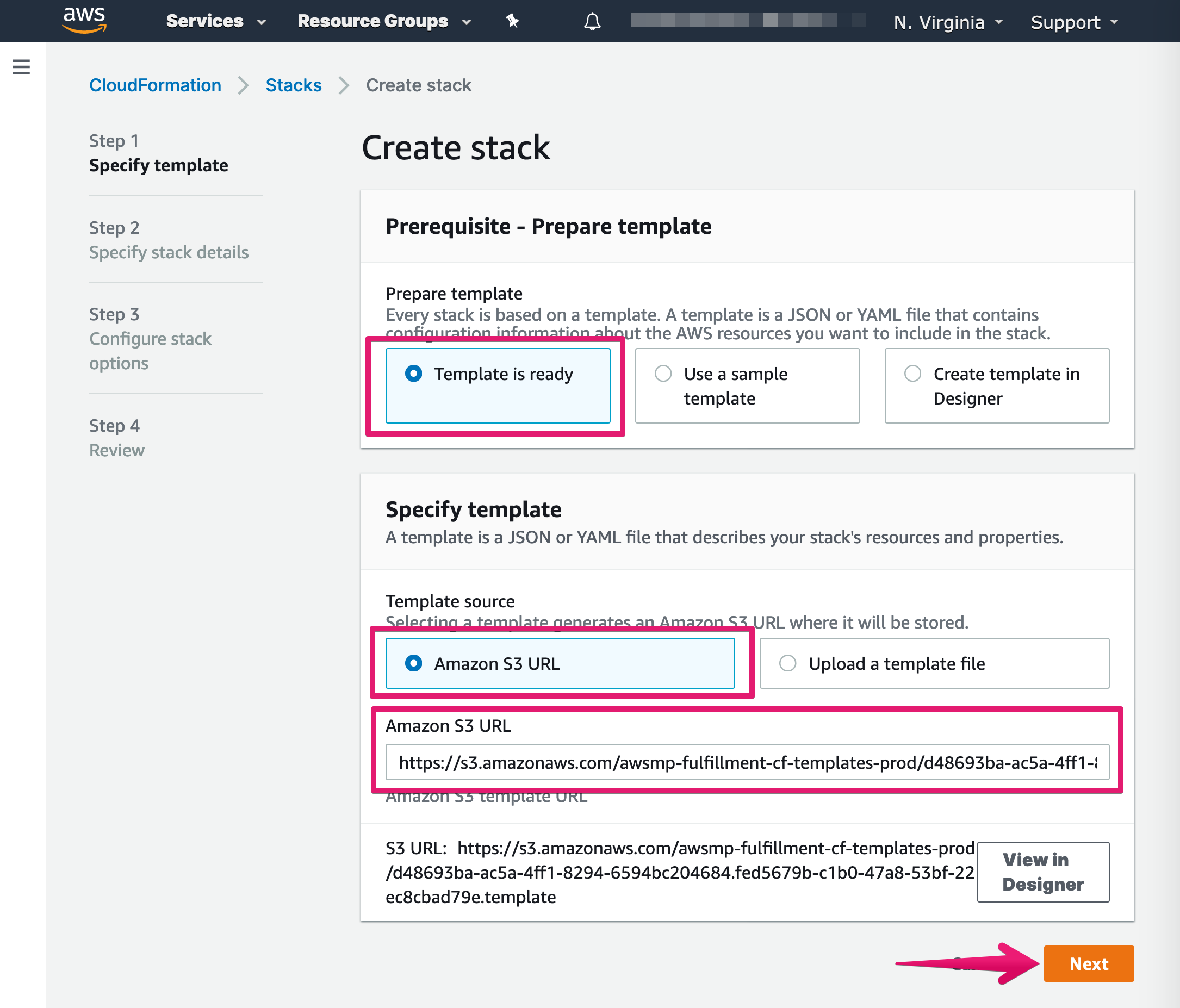
Choose \[Launch CloudFormation\] then click \[Launch\] button
### Phase 2. Create CloudFormation
#### Set up JINKEI
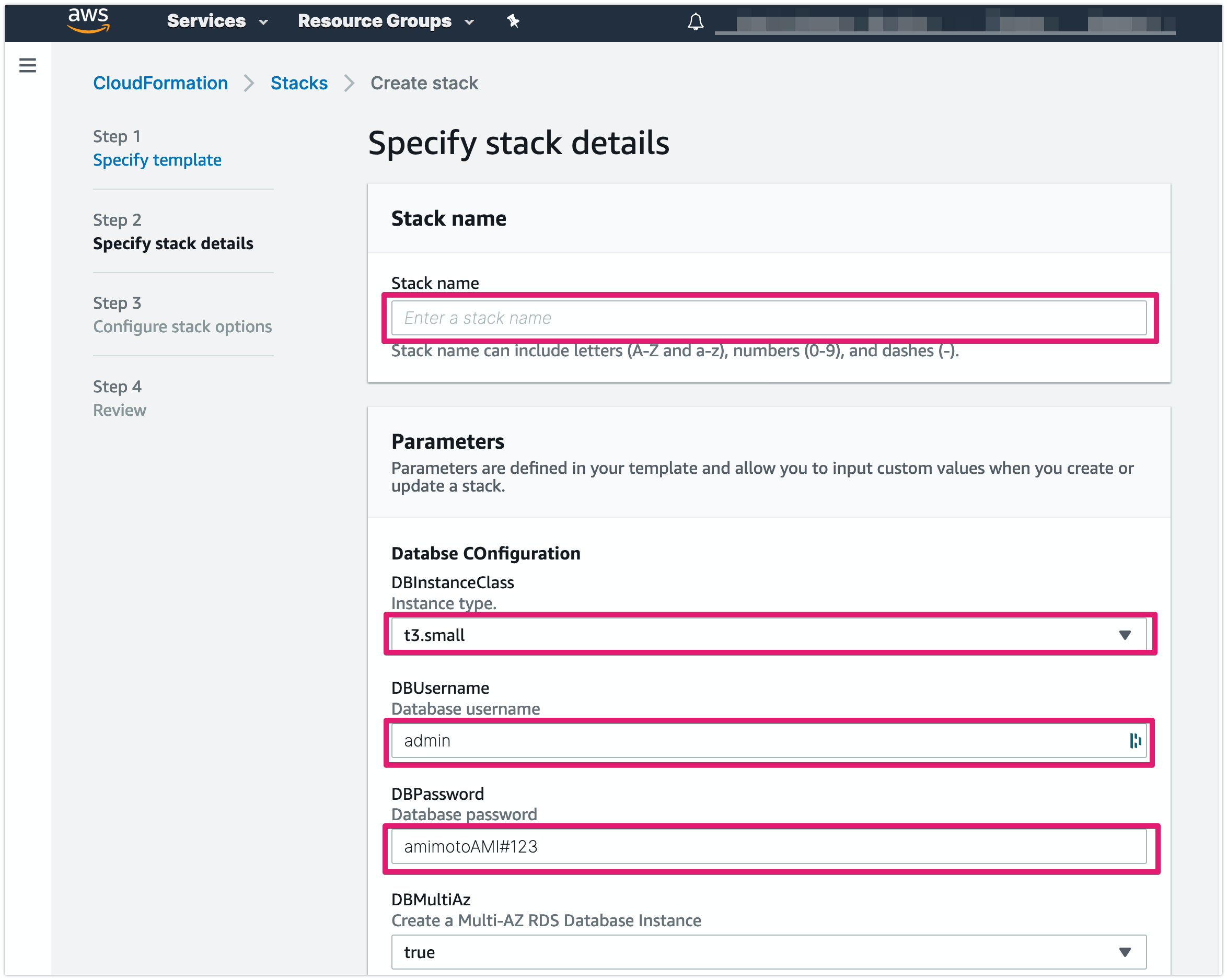
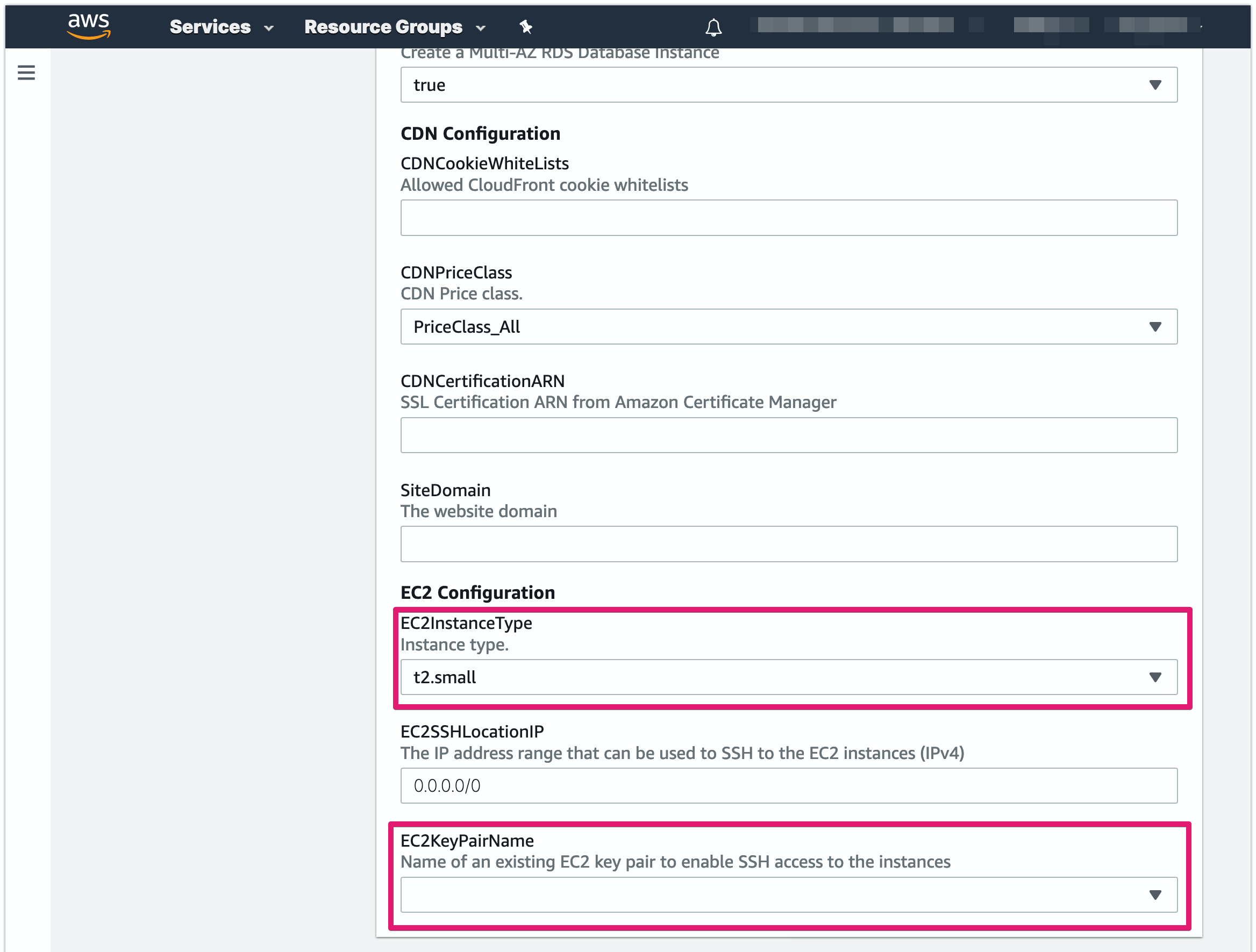
#### Input or select field
- Stack name
- DBInstanceClass
- DBUsername
- DBPassword
- EC2InstanceType
- EC2KeyPairname
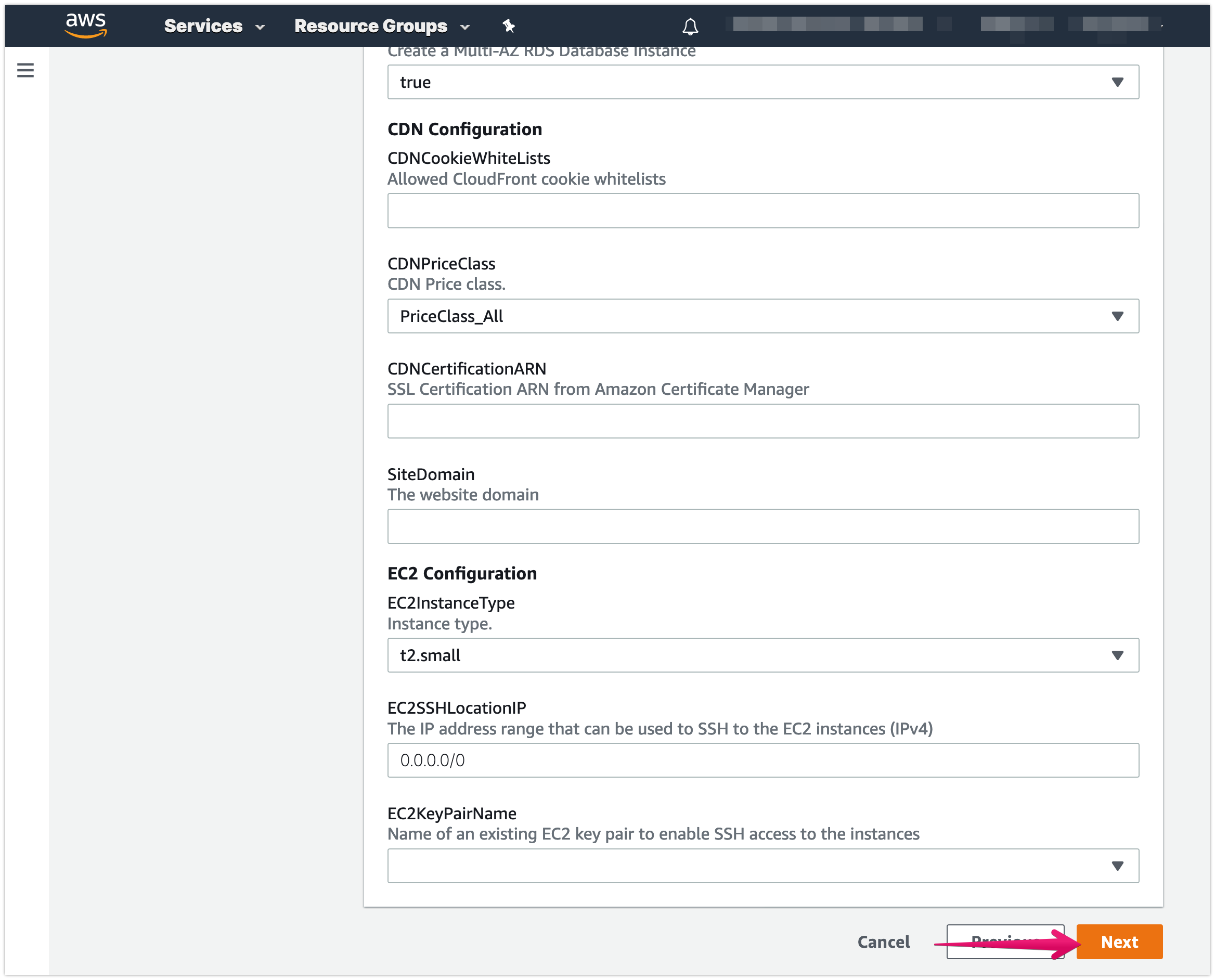
#### Click \[Next\] button
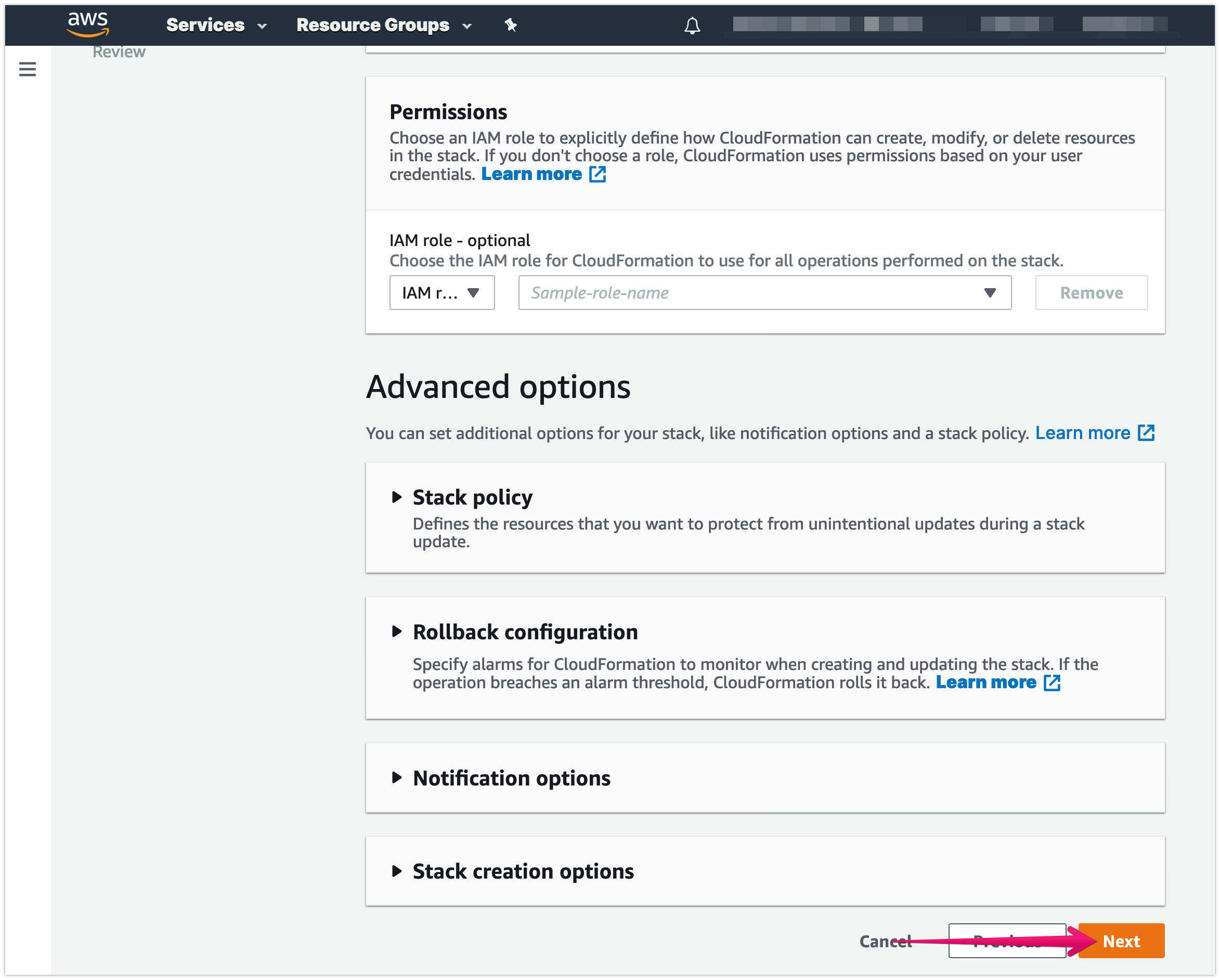
#### Click \[Next\] button on Advanced Options
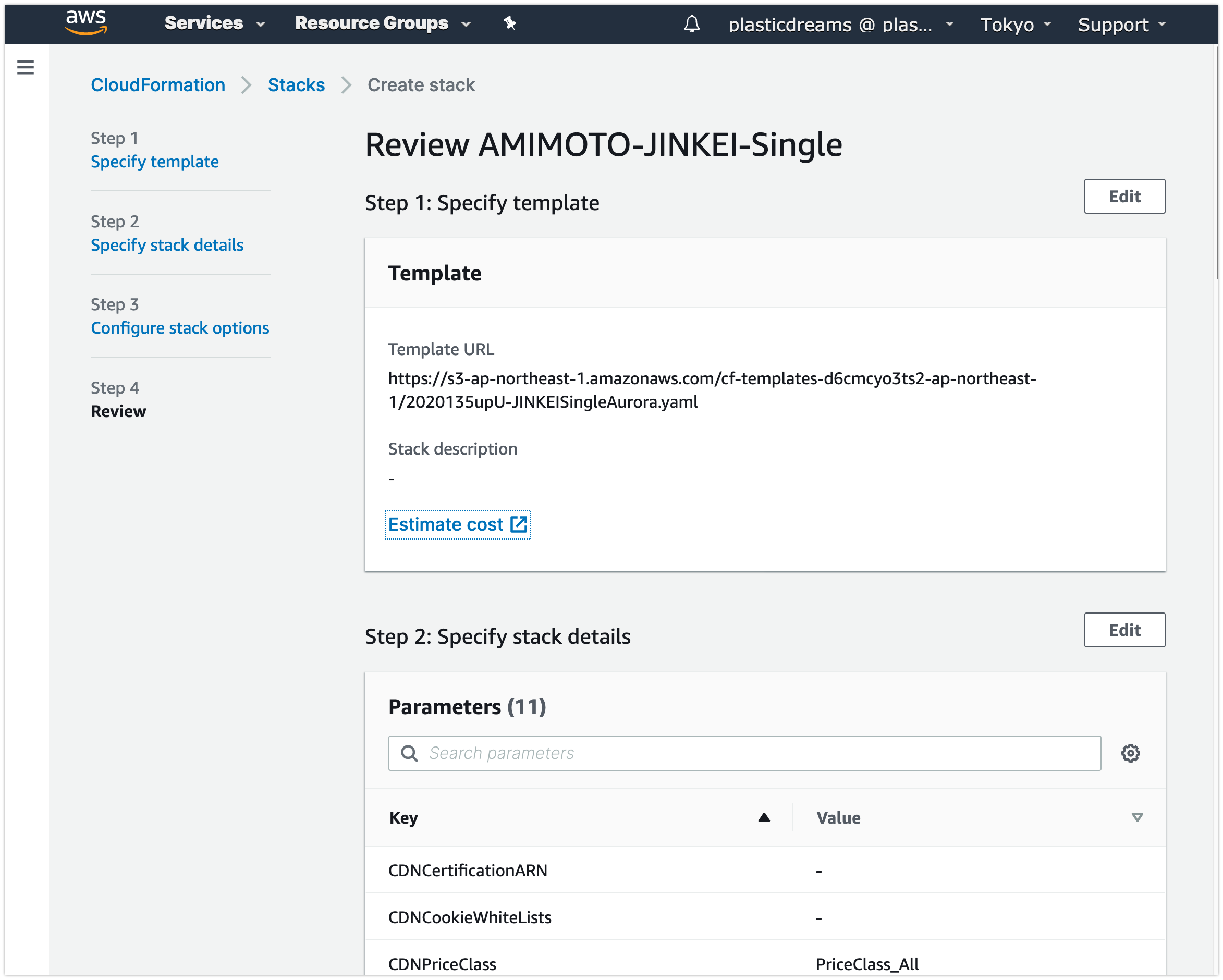
#### Review settings
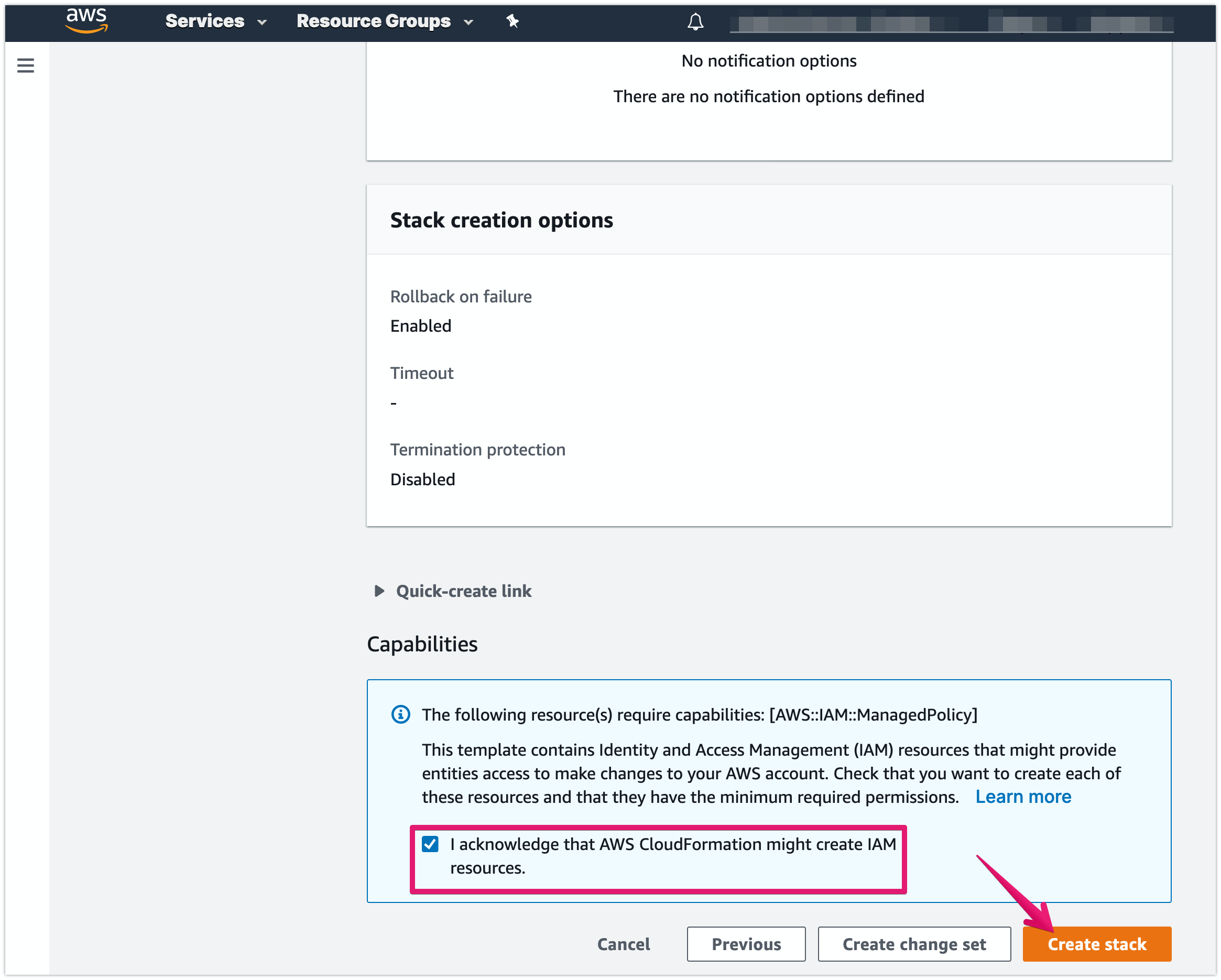
#### Check the checkbox under Capabilities then click \[Create stack\]
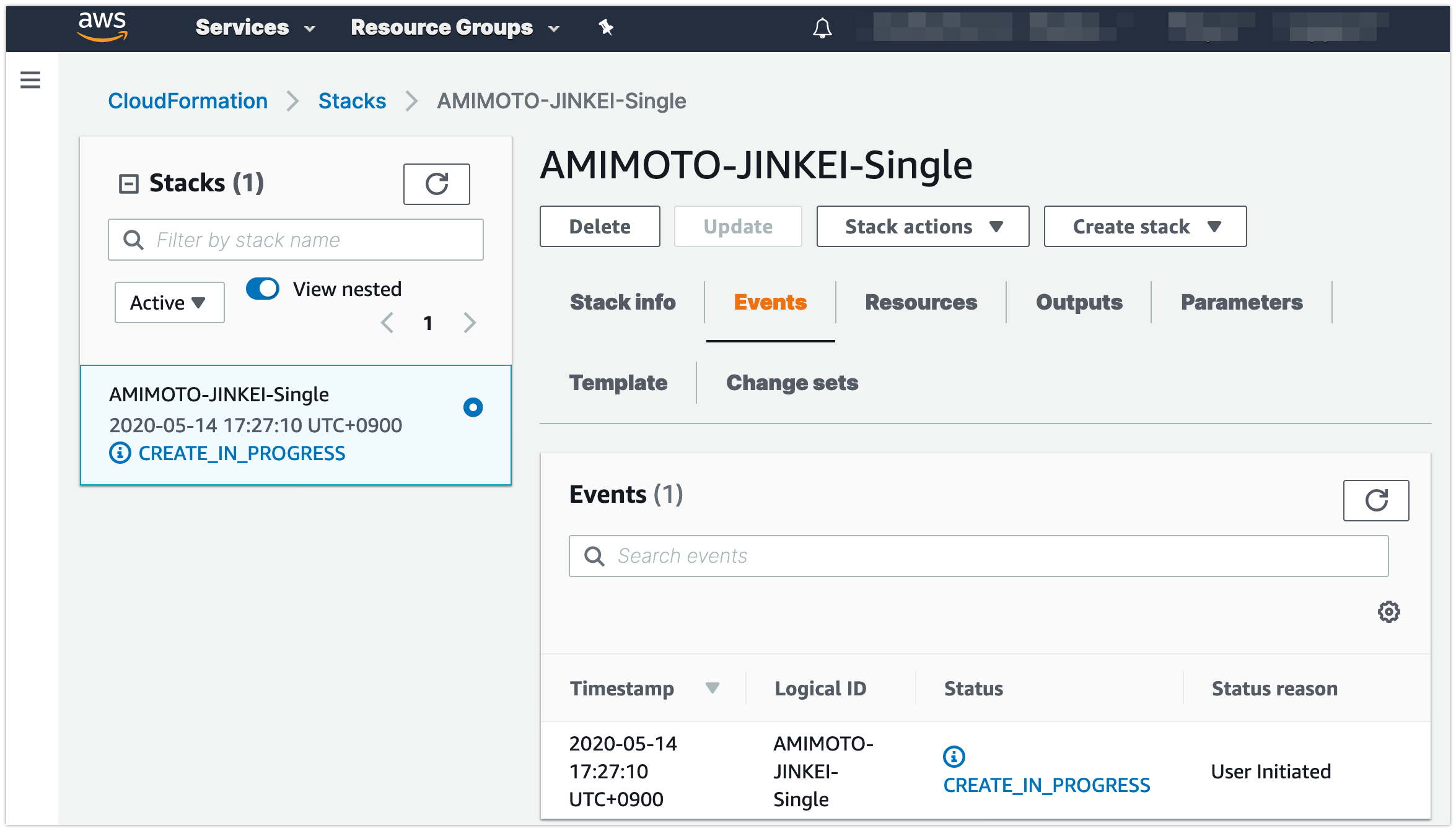
#### Now processing
### Request and get the certificate
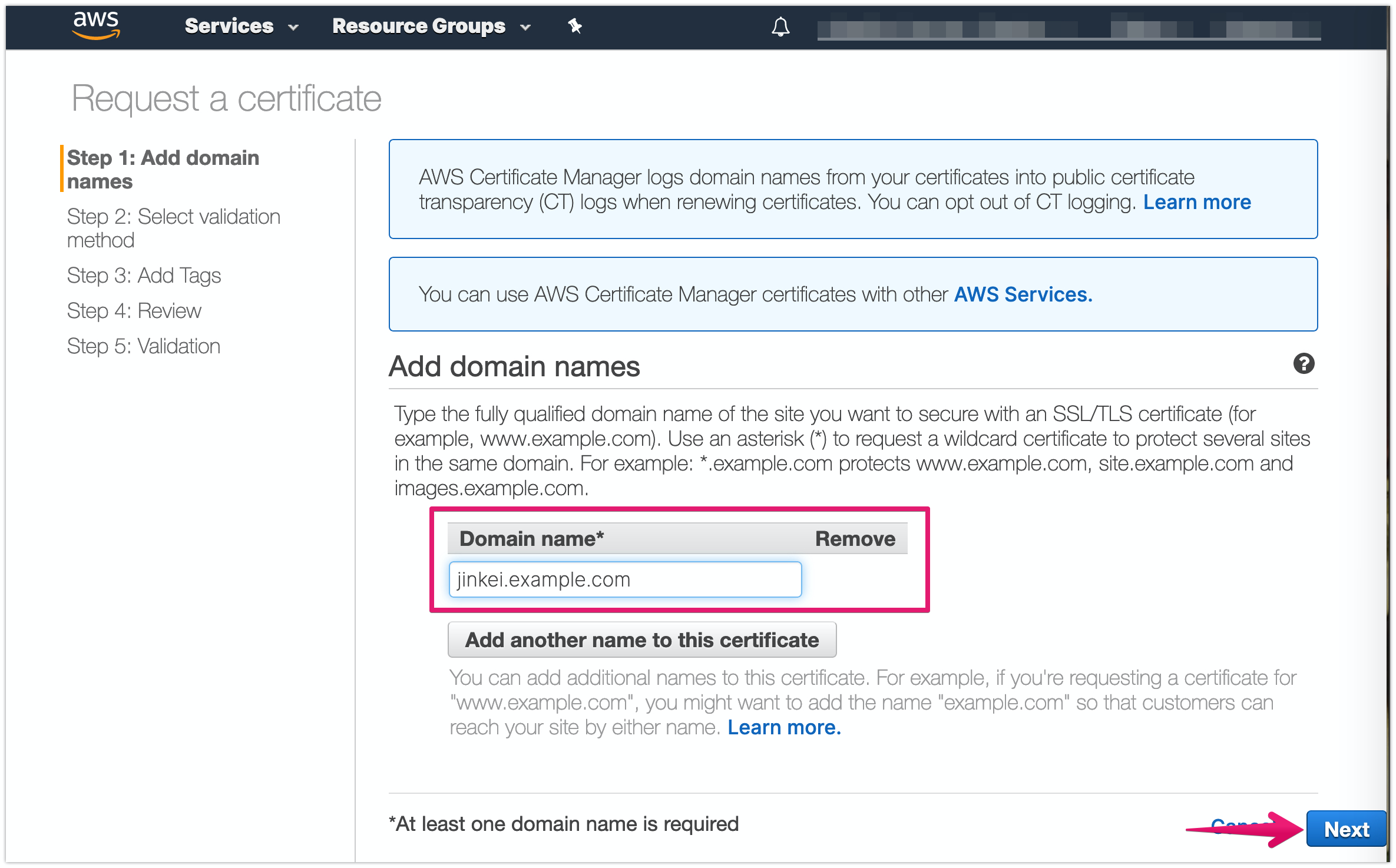
#### Input the domain name and click \[Next\] button
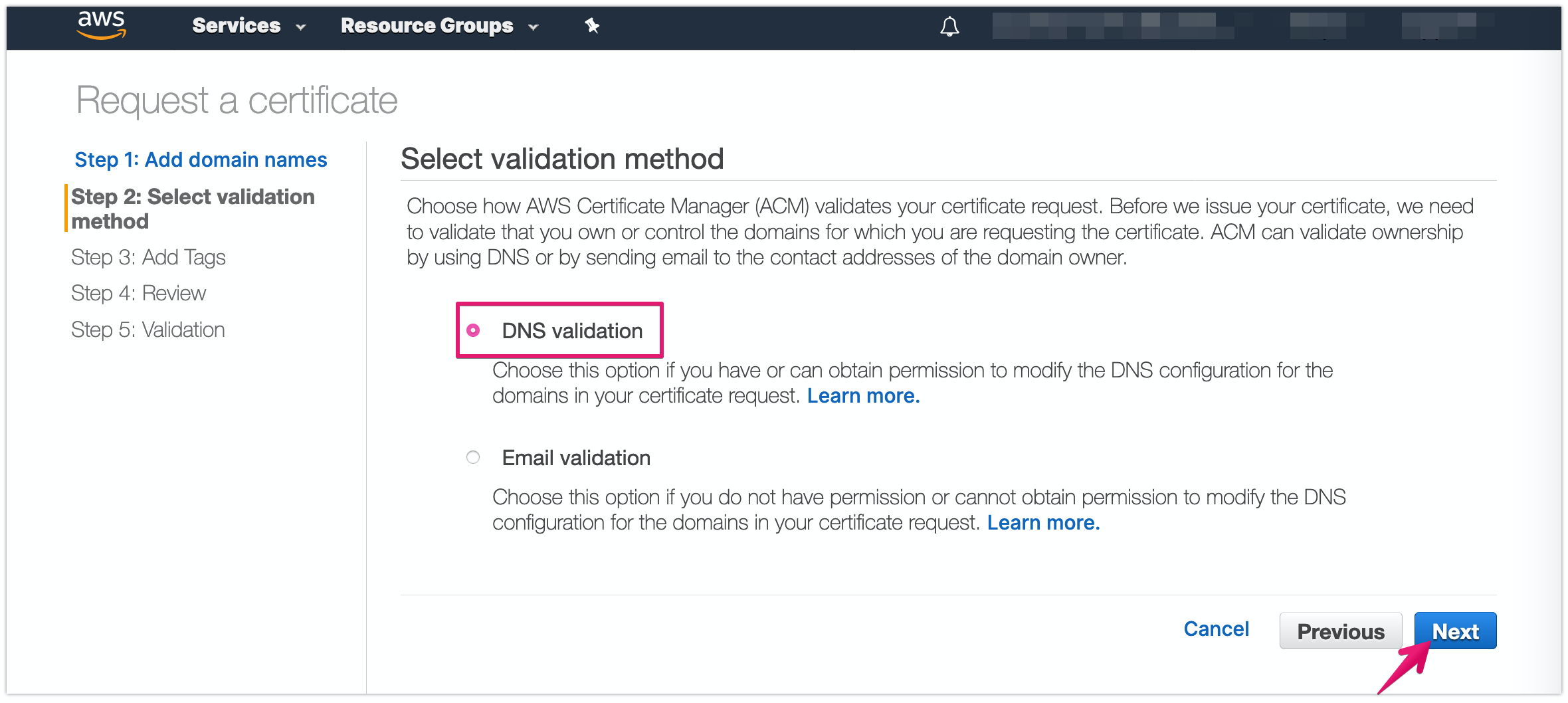
#### Choose DNS validation
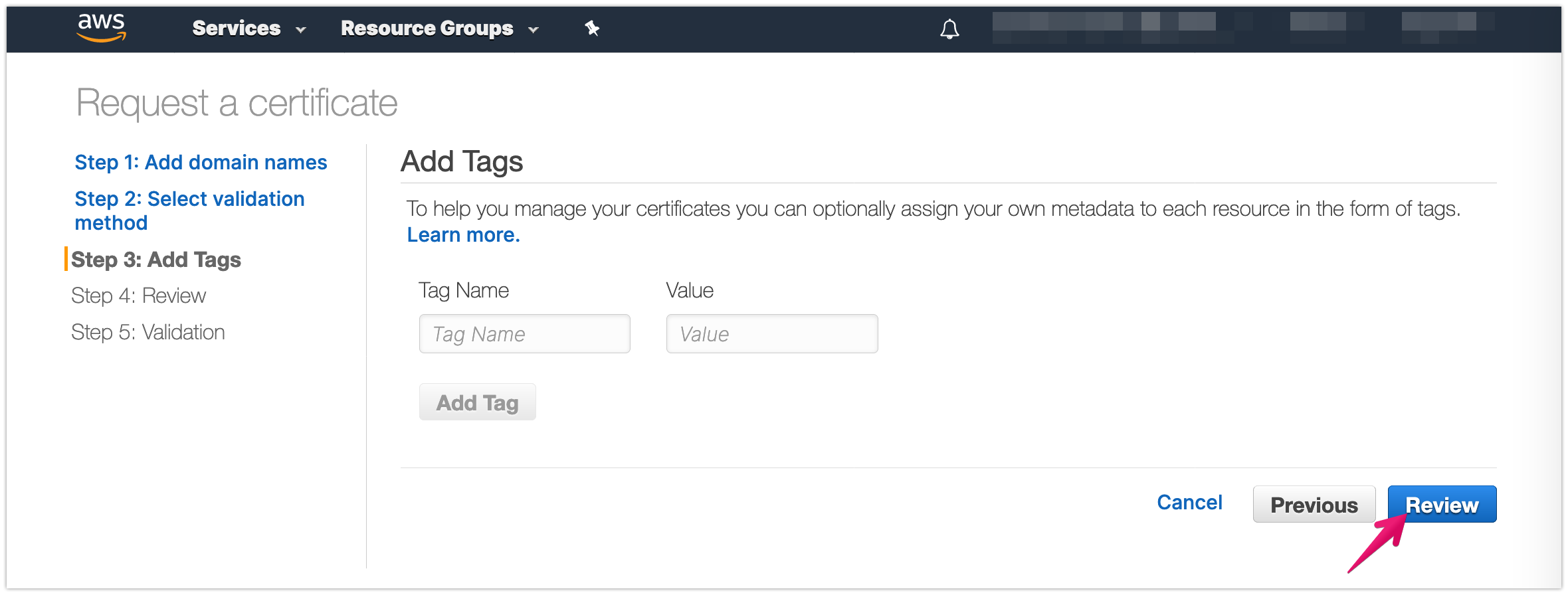
#### Set Tag Name and its value
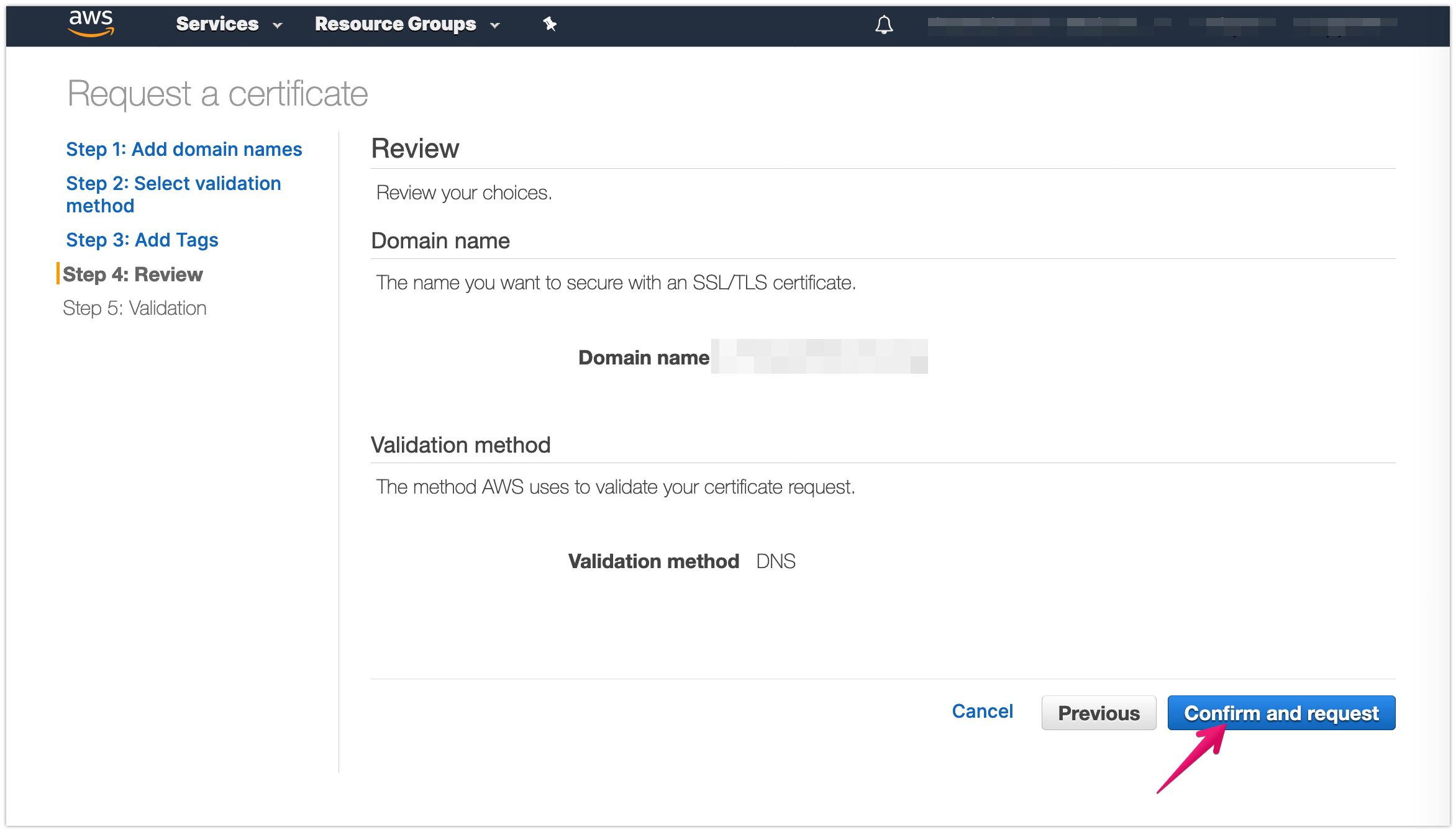
#### Review settings
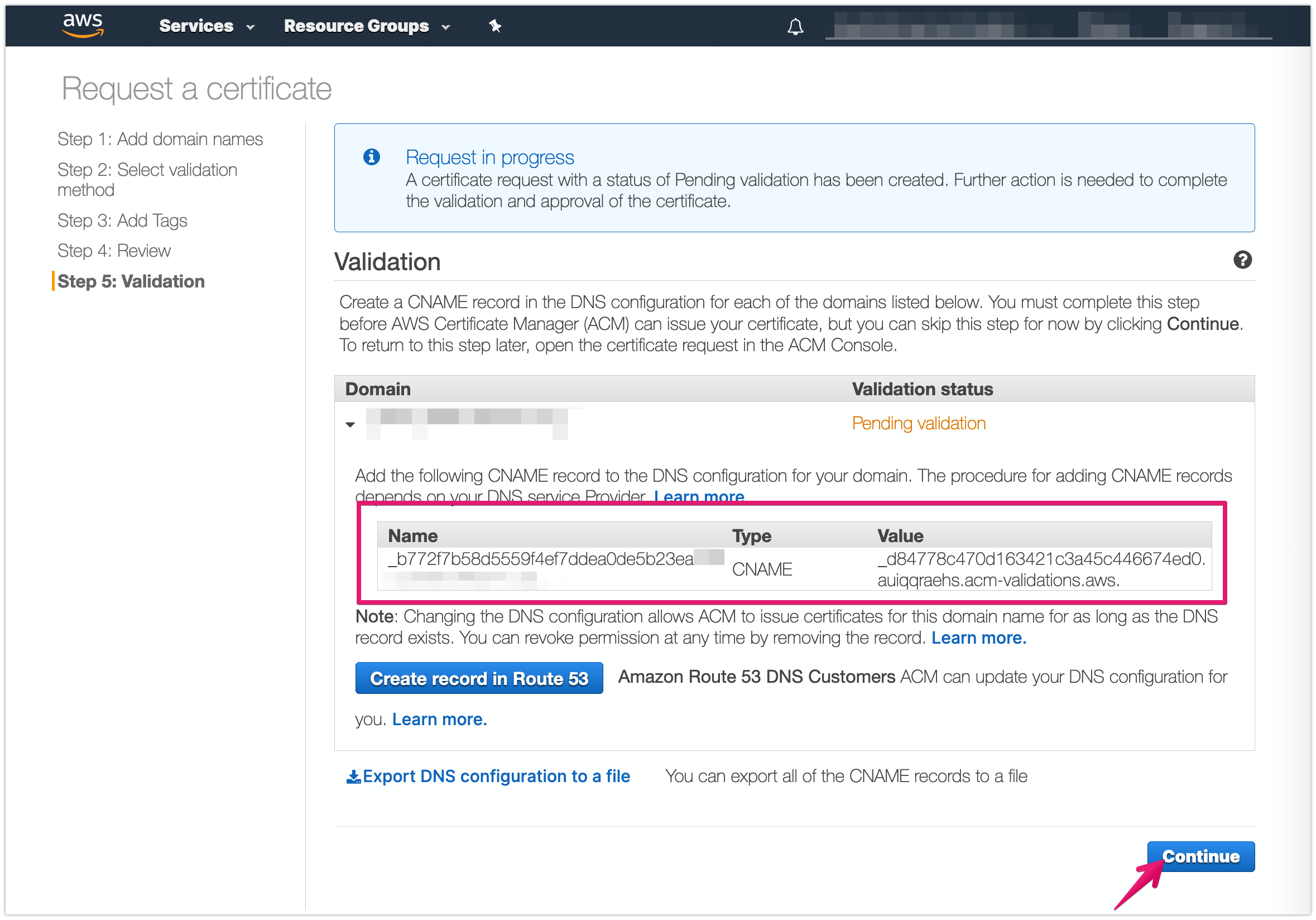
#### Copy DNS validation record
For the sample it will be like below:
**Name**: \_908e1340c4a44f368073b947ee8456e9.jinkei.example.com
**Type**: CNAME
**Value**: \_269db6d0f3f65608589acb36a4173506.auiqqraehs.acm-validations.aws.
#### Add DNS records to DNS server to complete domain verification
**Note:**
Domain validation should be done within 72 hours since your request. If you could not, you should make a request again.
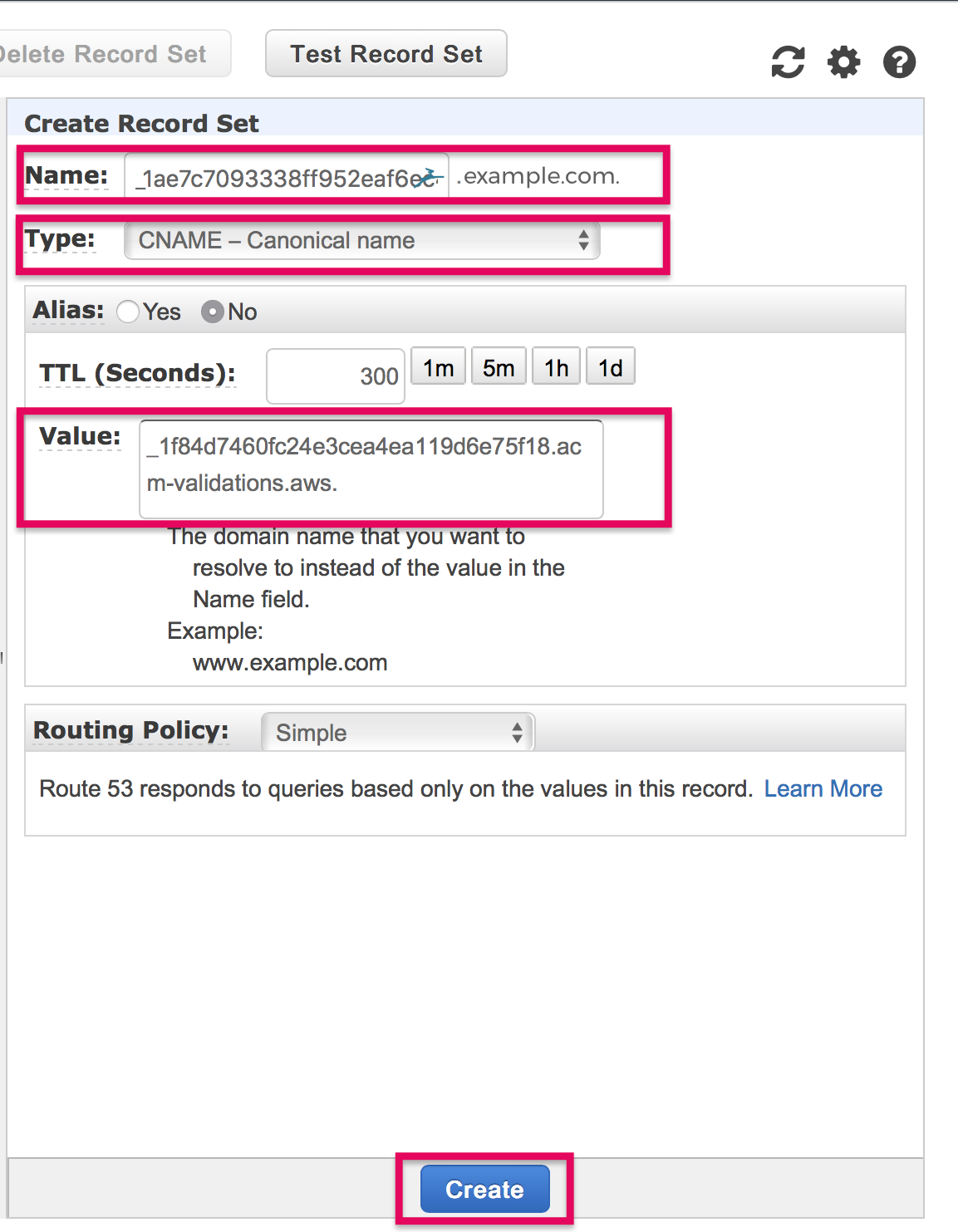
Goto ControlPanel of your DNS provider, and set up DNS records for DNS authentication.
Here is example for Route 53 of AWS.
Create record and input value of DNS record you copied above, then click \[Create\]
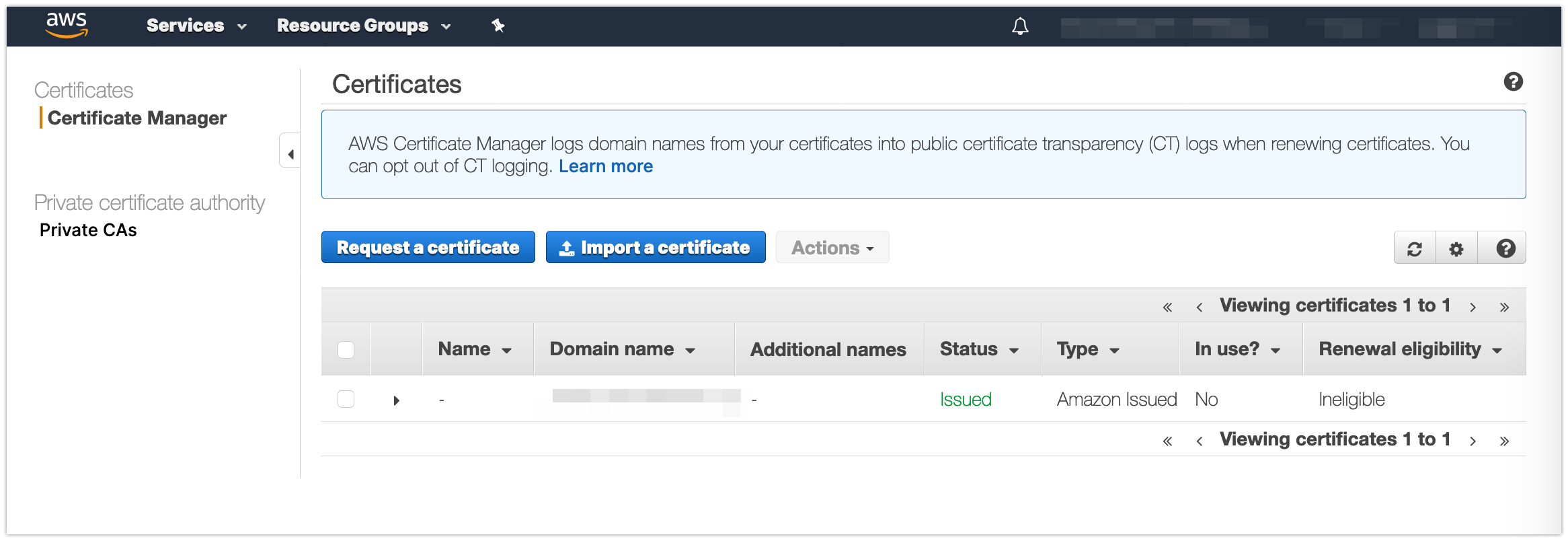
#### Certificate status turns to "Issued"
After adding validation DNS record, the Certificate status turns to "Issued"
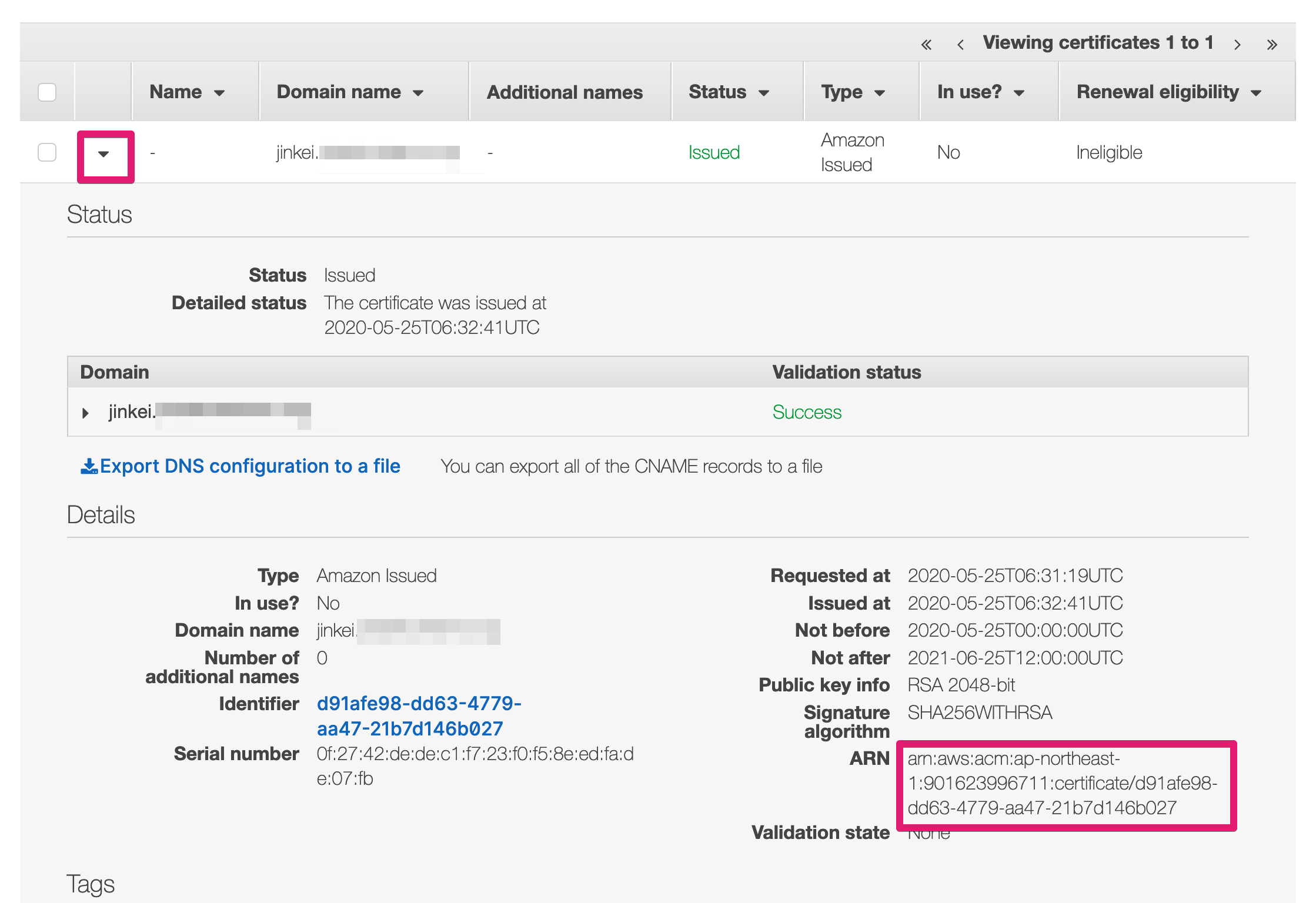
#### Copy ARN
### Phase 3. Update CloudFormation settings
To add ARN value and domain name to the created Stack
#### Navigate CloudFormation again
#### Click Update button
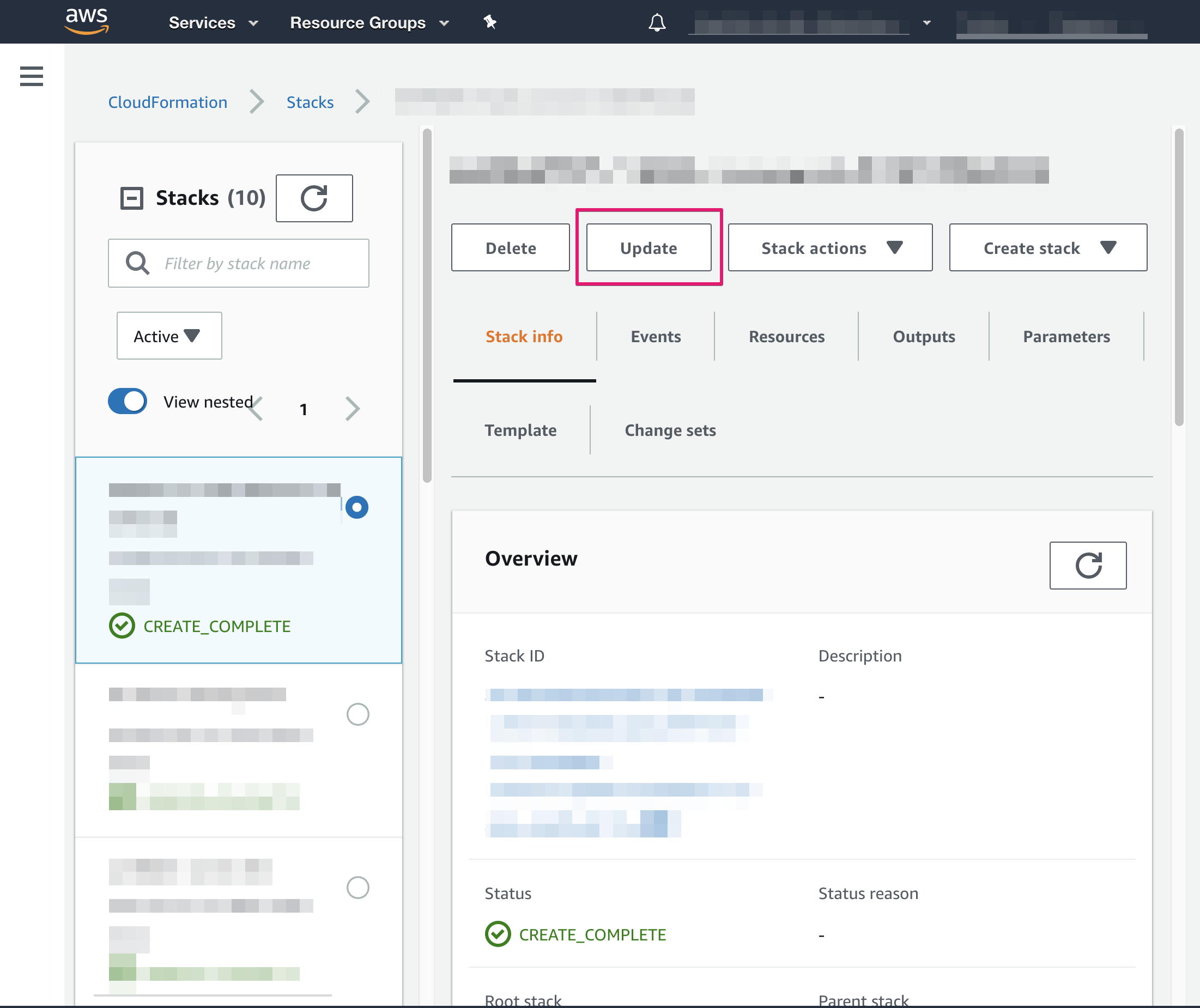
#### Choose \[Use current template\] and click \[Next\] button
#### Update values
- Paste copied ARN to \`CDNCertifiationARN\`
- Input your site domain name to SiteDomain
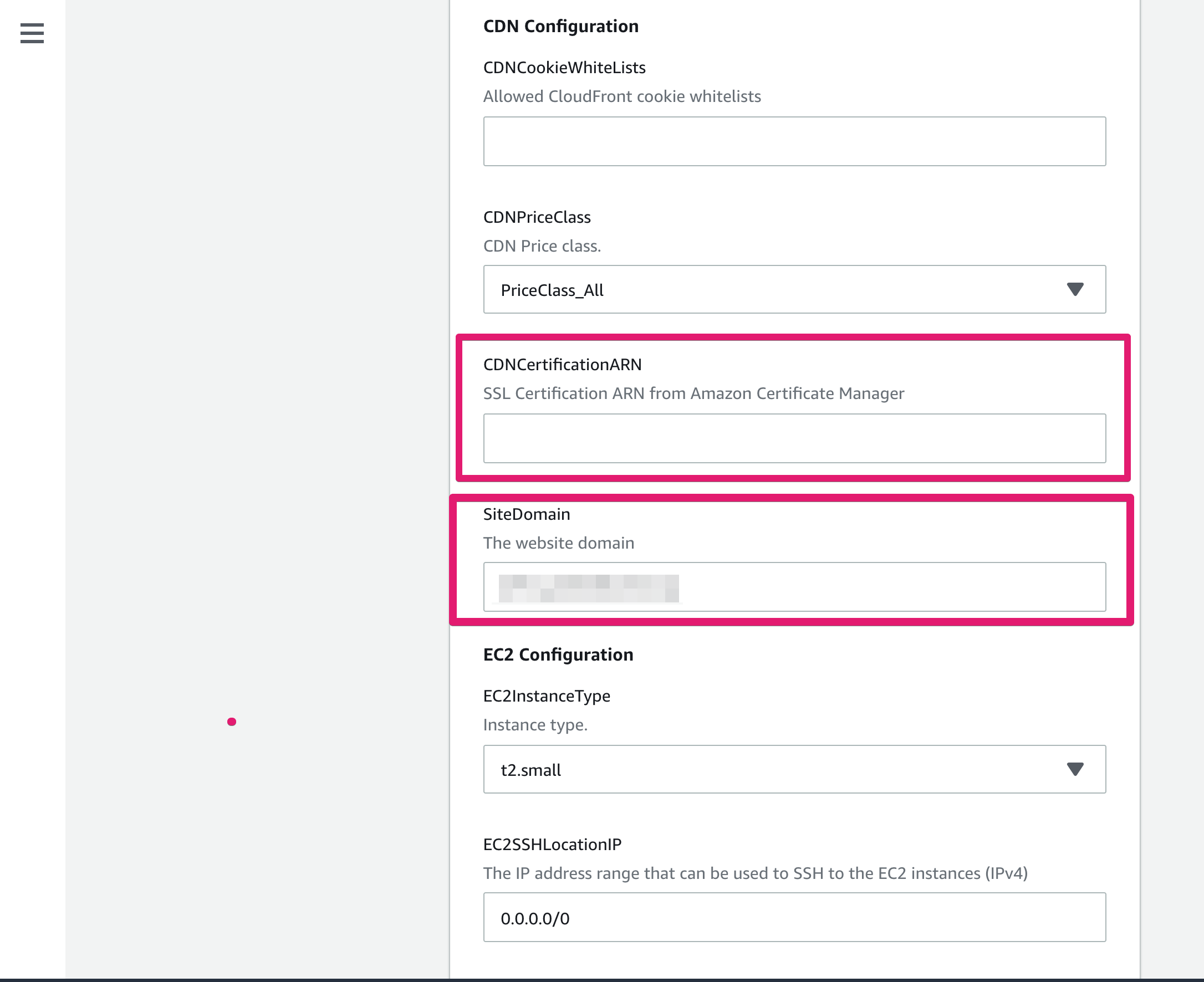
#### Scroll down to the bottom of page then click \[Next\] button
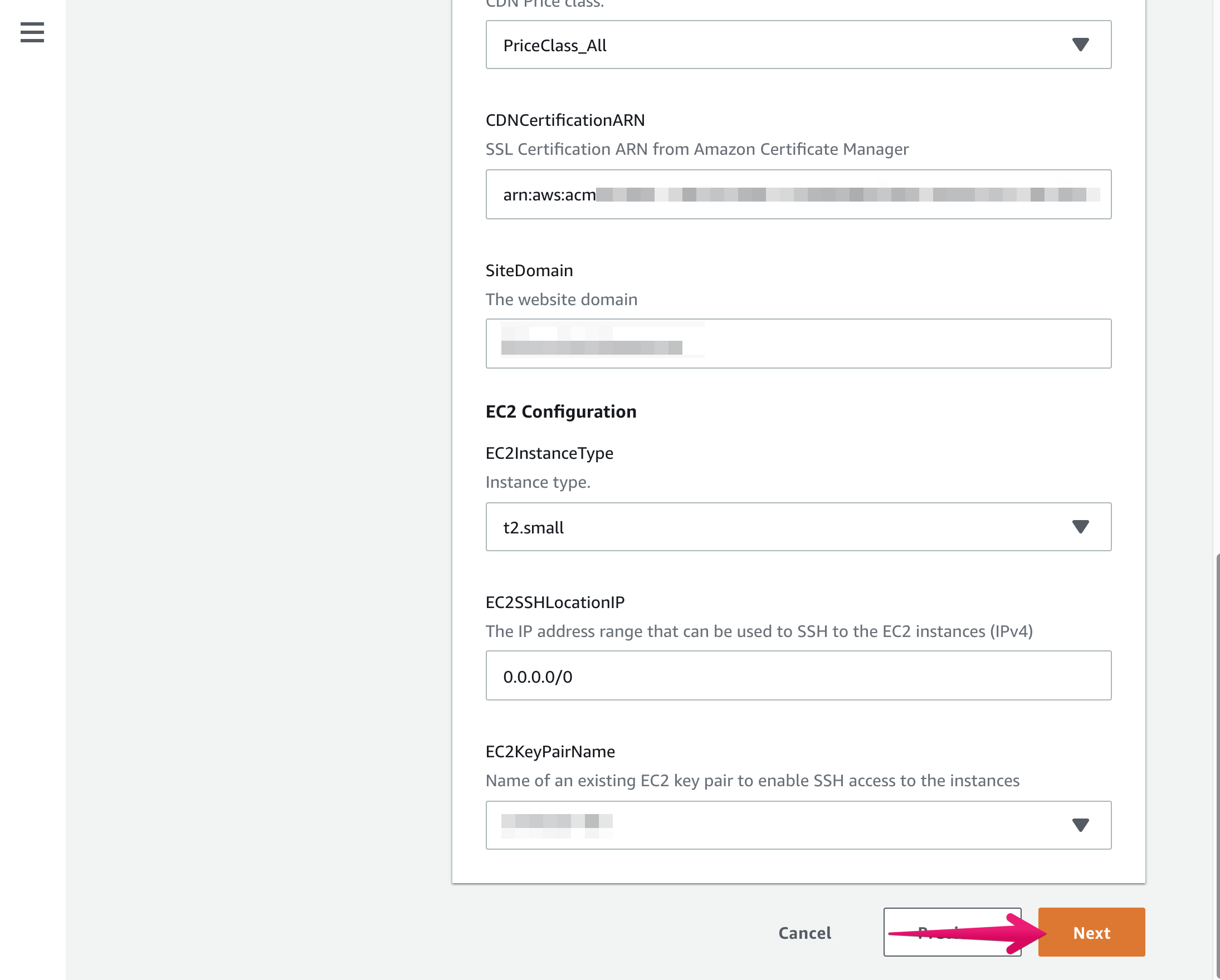
#### Check Capabilities then \[Update stack\]
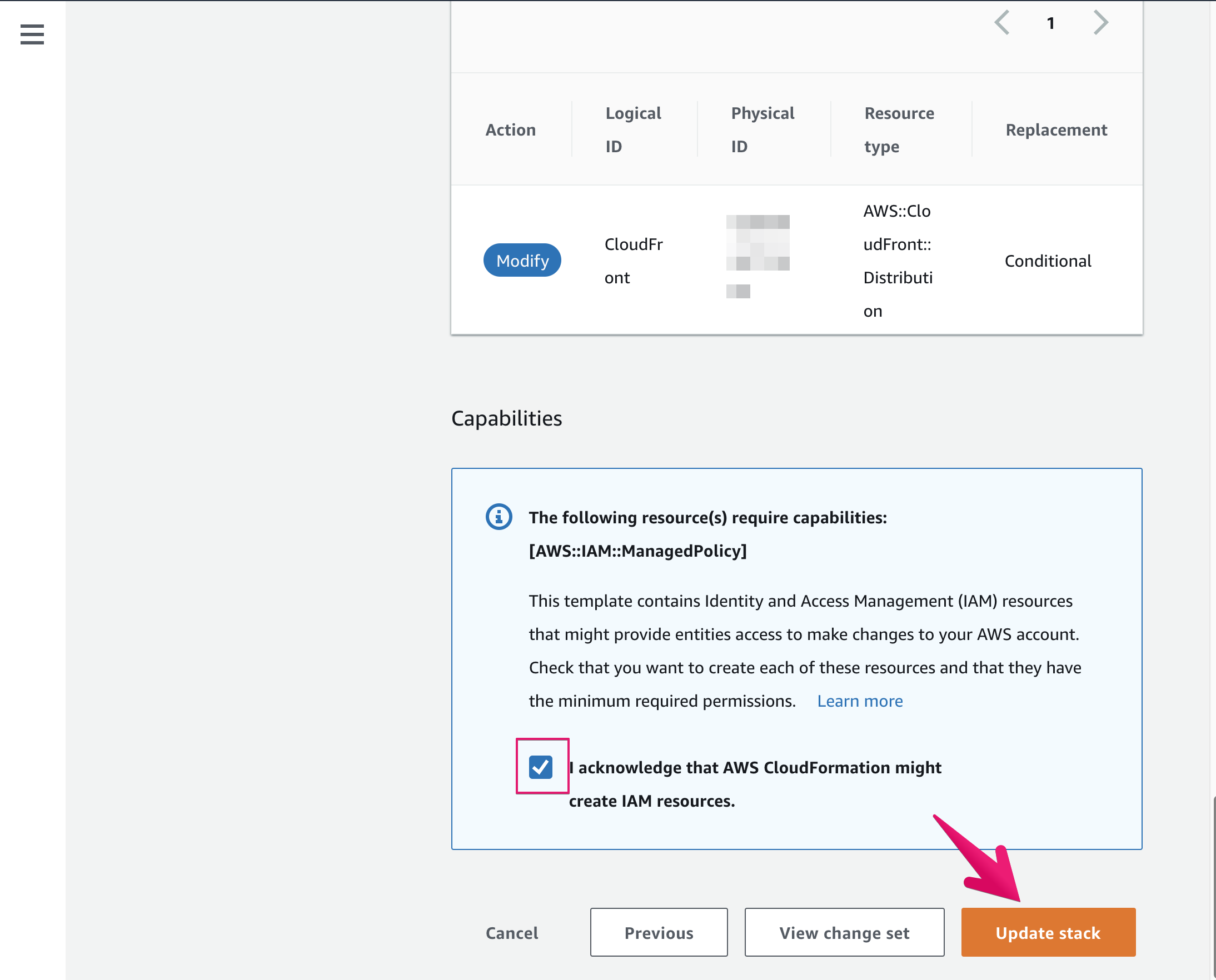
#### Stack will be updating
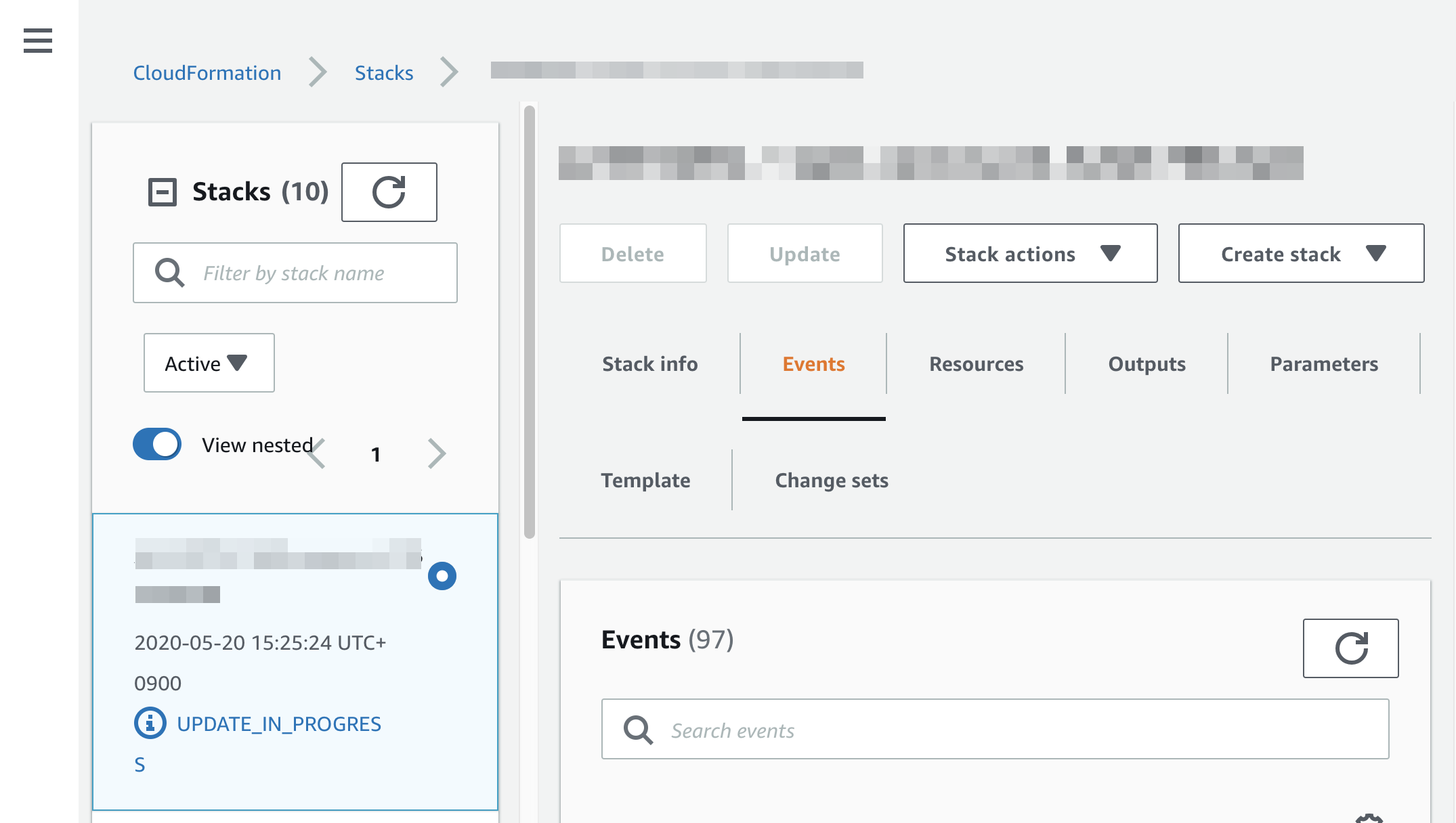
#### Click Outputs menu
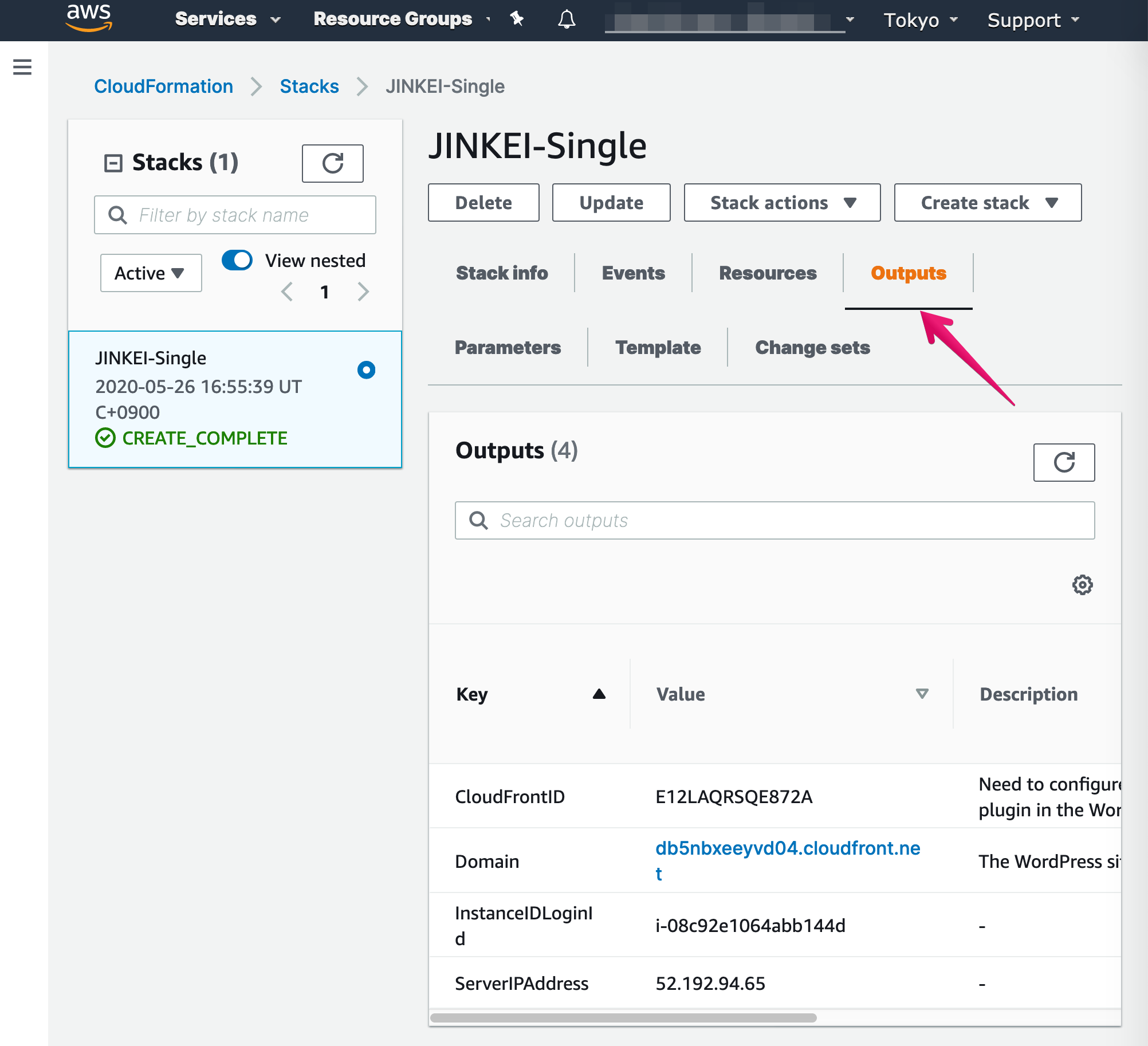
#### Copy Domain and InstanceIDLoginID
- Domain is default WordPress URL (e.g. db5nbxeeyvd04.cloudfront.net)
- InstanceIDLoginID is default password for admin of WordPress and equal to EC2' instance ID (e.g. i-abcedf123456789)
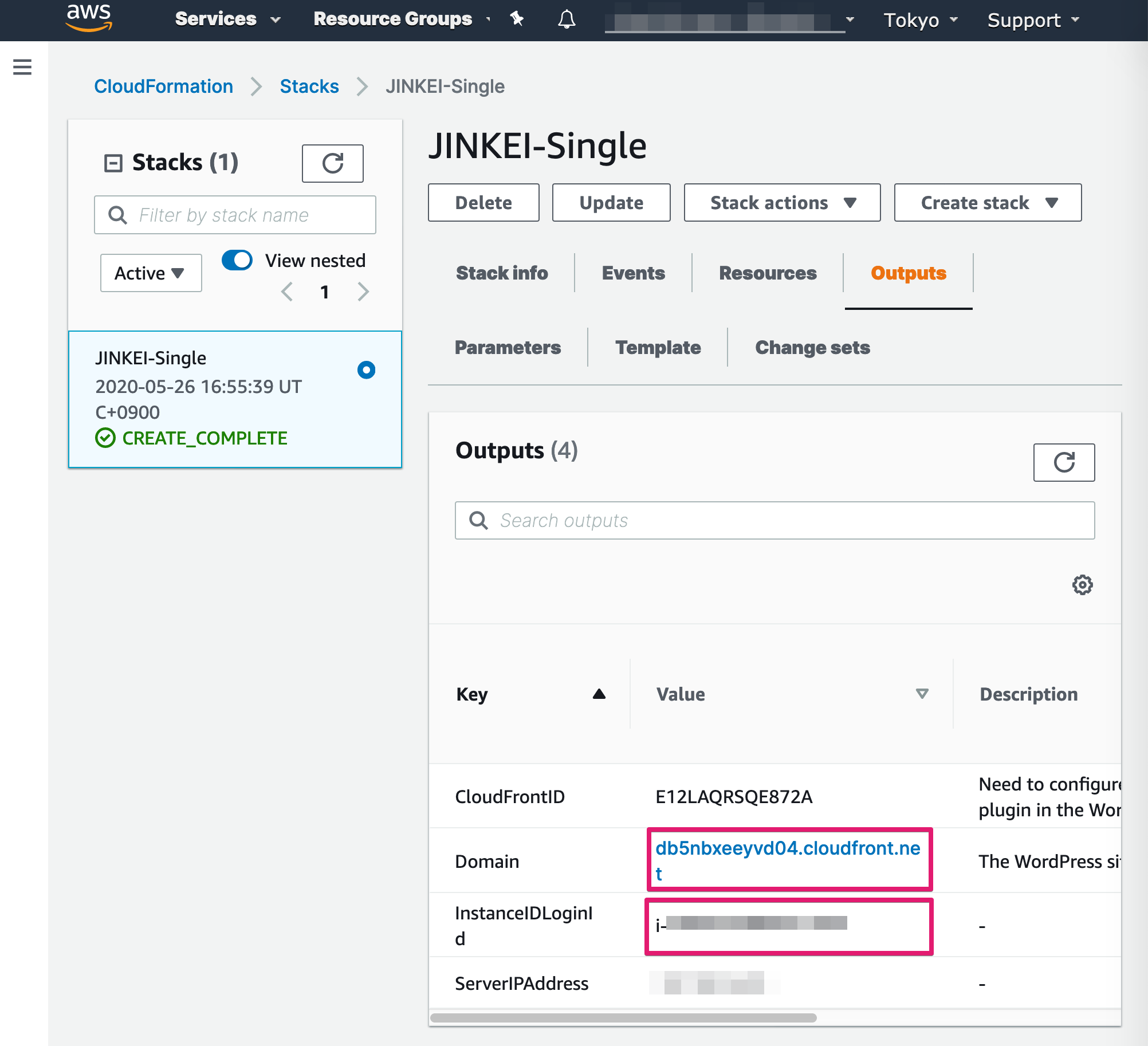
### Phase 4. Set up WordPress
#### Access copied Domain (e.g. db5nbxeeyvd04.cloudfront.net)
#### Input InstanceIDLoginID then click \[Next Step\]
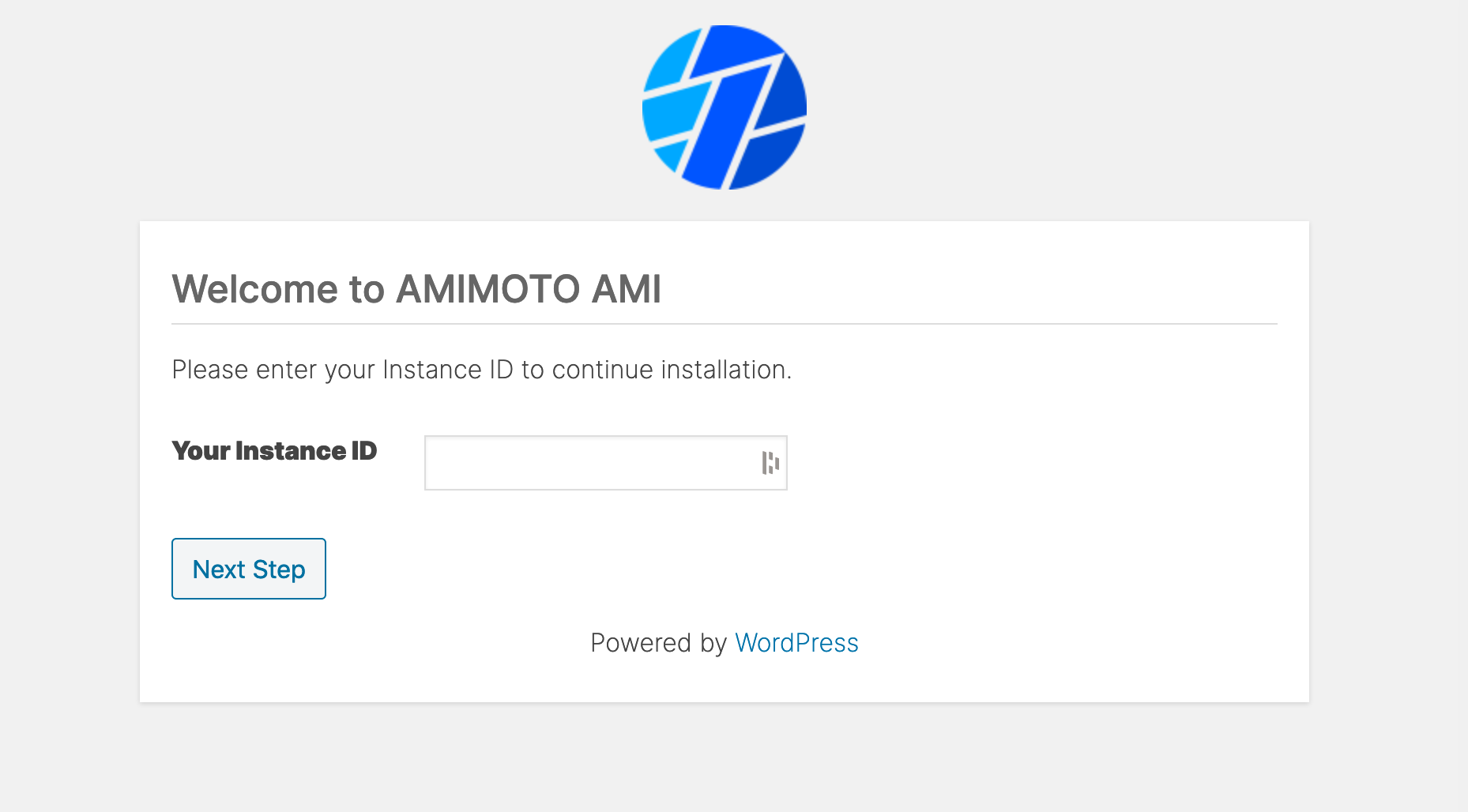
#### Fill in each fields to complete initial setup
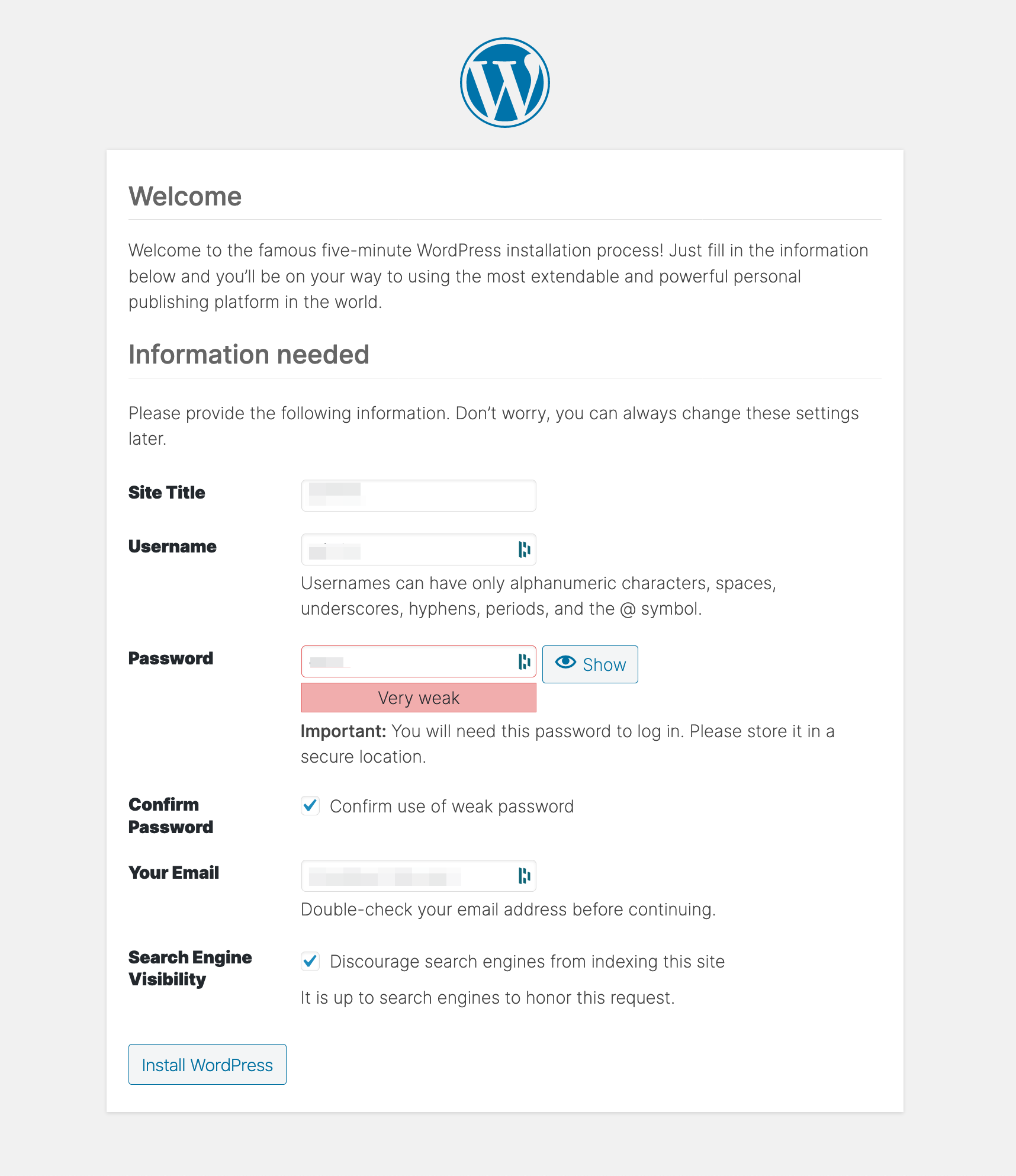
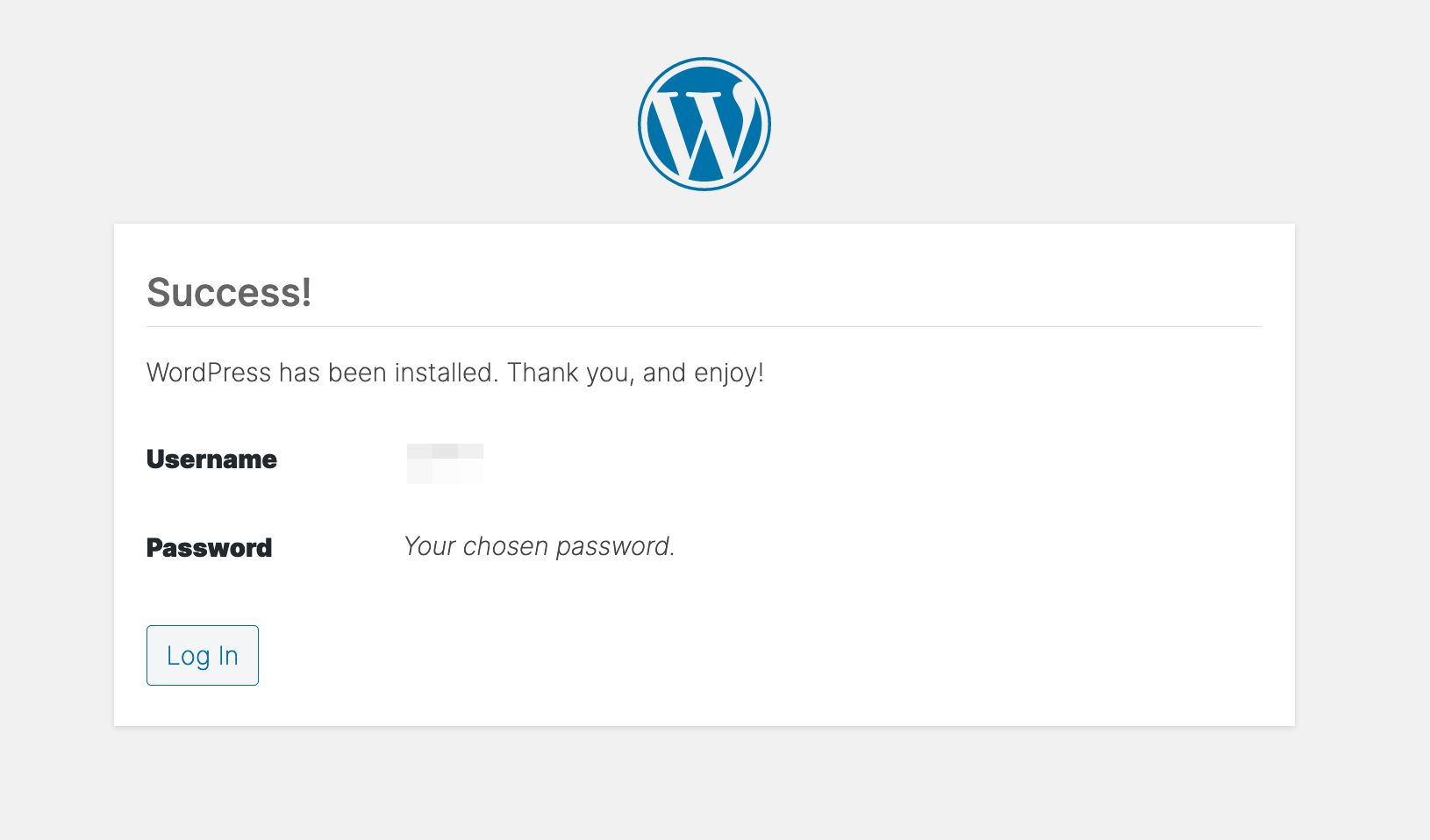
#### .... And login to WordPress Dashboard
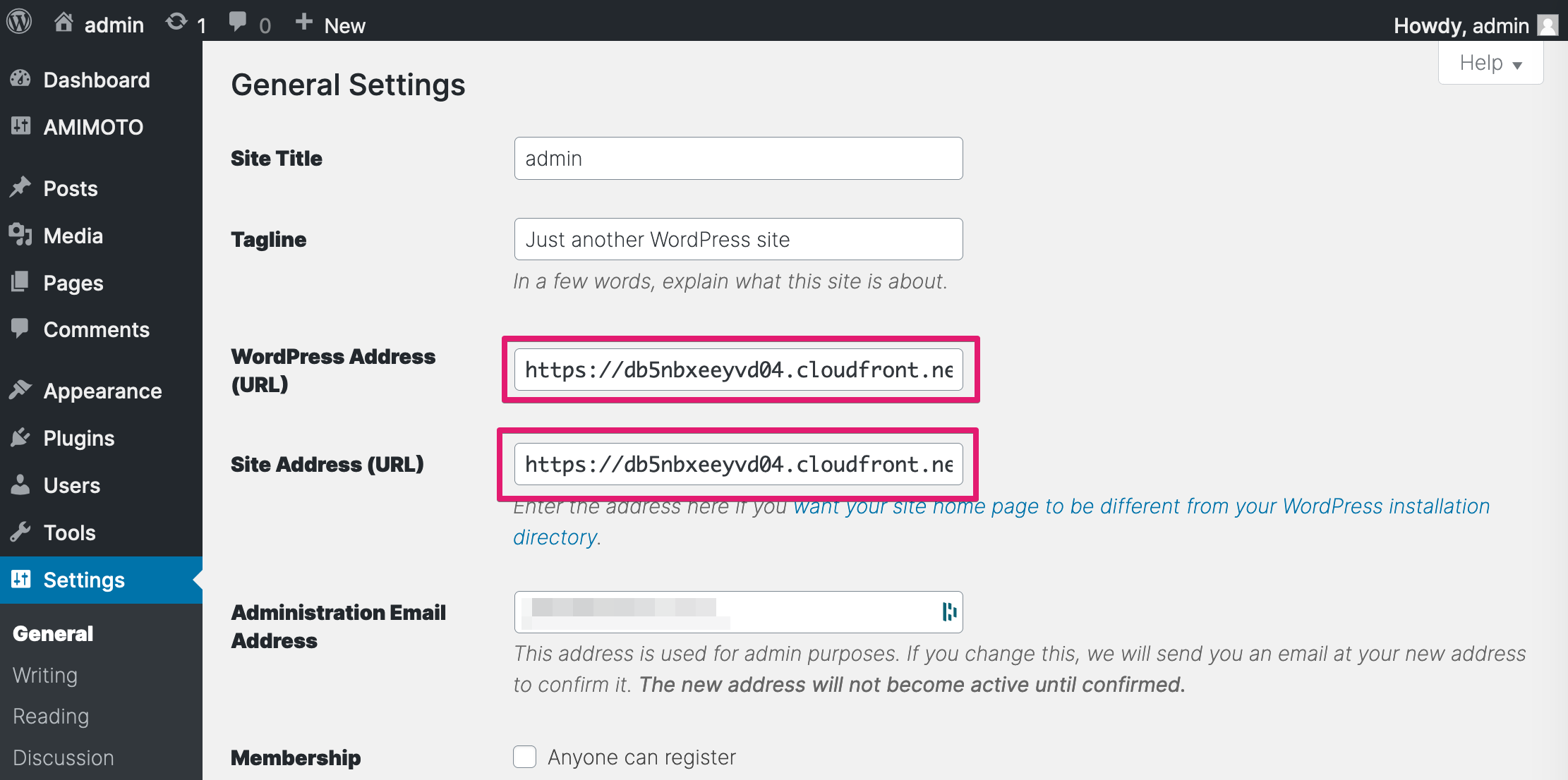
#### Update WordPress Address and Site Address to your domain name
CloudFront URL (e.g. db5nbxeeyvd04.cloudfront.net) to your domain name (jinkei.example.com)
### Phase 5. Update DNS record of the domain name
Navigate to Control Panel of DNS provider and modify ALIAS or CNAME record to CloudFront URL (e.g. db5nbxeeyvd04.cloudfront.net)
That's all!
- [Amimoto Managed Hosting](https://knowledge.amimoto-ami.com/en/knowledge/amimoto-managed-hosting?hsLang=en#main-content)
- [Basics](https://knowledge.amimoto-ami.com/en/knowledge/amimoto-managed-hosting?hsLang=en#basics)
- [Amimoto Essential Training](https://knowledge.amimoto-ami.com/en/knowledge/amimoto-managed-hosting?hsLang=en#amimoto-essential-training)
- [Migration tips for AMIMOTO Managed Hosting](https://knowledge.amimoto-ami.com/en/knowledge/amimoto-managed-hosting?hsLang=en#migration-tips-for-amimoto-managed-hosting)
- [Amimoto Dashboard Tips](https://knowledge.amimoto-ami.com/en/knowledge/amimoto-managed-hosting?hsLang=en#amimoto-dashboard-tips)
- [Connecting to the Server](https://knowledge.amimoto-ami.com/en/knowledge/amimoto-managed-hosting?hsLang=en#connecting-to-the-server)
- [Account and Billing](https://knowledge.amimoto-ami.com/en/knowledge/amimoto-managed-hosting?hsLang=en#account-and-billing)
- [Trouble shooting](https://knowledge.amimoto-ami.com/en/knowledge/amimoto-managed-hosting?hsLang=en#trouble-shooting)
- [WordPress Plugins](https://knowledge.amimoto-ami.com/en/knowledge/amimoto-managed-hosting?hsLang=en#wordpress-plugins)
- [Tips for DNS Vendors](https://knowledge.amimoto-ami.com/en/knowledge/amimoto-managed-hosting?hsLang=en#tips-for-dns-vendors)
- [Email](https://knowledge.amimoto-ami.com/en/knowledge/amimoto-managed-hosting?hsLang=en#email)
- [CDN and Cache control](https://knowledge.amimoto-ami.com/en/knowledge/amimoto-managed-hosting?hsLang=en#cdn-and-cache-control)
- [Server & AWS Management](https://knowledge.amimoto-ami.com/en/knowledge/amimoto-managed-hosting?hsLang=en#server-aws-management)
- [Integration](https://knowledge.amimoto-ami.com/en/knowledge/amimoto-managed-hosting?hsLang=en#integration)
- [Development](https://knowledge.amimoto-ami.com/en/knowledge/amimoto-managed-hosting?hsLang=en#development)
- [Amimoto AMI](https://knowledge.amimoto-ami.com/en/knowledge/amimoto-ami?hsLang=en#main-content)
- [Getting Started with Amimoto-AMI](https://knowledge.amimoto-ami.com/en/knowledge/amimoto-ami?hsLang=en#getting-started-with-amimoto-ami)
- [Basics](https://knowledge.amimoto-ami.com/en/knowledge/amimoto-ami?hsLang=en#basics)
- [Connection to Amimoto AMI](https://knowledge.amimoto-ami.com/en/knowledge/amimoto-ami?hsLang=en#connection-to-amimoto-ami)
- [Tips](https://knowledge.amimoto-ami.com/en/knowledge/amimoto-ami?hsLang=en#tips)
- [FAQs](https://knowledge.amimoto-ami.com/en/knowledge/amimoto-ami?hsLang=en#faqs)
- [Trouble shooting](https://knowledge.amimoto-ami.com/en/knowledge/amimoto-ami?hsLang=en#trouble-shooting)
- [Getting Started with Amimoto JIN-KEI](https://knowledge.amimoto-ami.com/en/knowledge/amimoto-ami?hsLang=en#getting-started-with-amimoto-jin-kei)
- [Tips for JINKEI](https://knowledge.amimoto-ami.com/en/knowledge/amimoto-ami?hsLang=en#tips-for-jinkei)
- [Support](https://knowledge.amimoto-ami.com/en/knowledge/amimoto-ami?hsLang=en#support)
- [\[EN\] Amimoto Managed Hosting](https://knowledge.amimoto-ami.com/en/knowledge/en-amimoto-managed-hosting?hsLang=en#main-content)
- [Company and Guidelines](https://knowledge.amimoto-ami.com/en/knowledge/en-amimoto-managed-hosting?hsLang=en#company-and-guidelines)
- ホーム
- 製品
- 価格
- ブログ
- 会社
[](https://ja.amimoto-ami.com/)
Amimoto Help Center
Copyright © 2026, 株式会社デジタルキューブ