---
title: How to Delete Your Amimoto Account
description: Delete all of your sites on `go.amimoto-ami.com`, if you see the message "All servers must be deleted before your account can be closed"
---
[Skip to content](https://knowledge.amimoto-ami.com/en/knowledge/how-to-delete-your-amimoto-account#main-content)
- [English](https://knowledge.amimoto-ami.com/en/knowledge/how-to-delete-your-amimoto-account)
- [日本語](https://knowledge.amimoto-ami.com/knowledge/managed-account-setting)
English
Show submenu for translations
![Amimoto-dark-ogp.png\]](https://knowledge.amimoto-ami.com/hs-fs/hubfs/Amimoto-dark-ogp.png?height=40&name=Amimoto-dark-ogp.png)
- ホーム
- 製品
- 価格
- ブログ
- 会社
Open main navigation
Close main navigation
- ホーム
- 製品
- 価格
- ブログ
- 会社
- - [English](https://knowledge.amimoto-ami.com/en/knowledge/how-to-delete-your-amimoto-account)
- [日本語](https://knowledge.amimoto-ami.com/knowledge/managed-account-setting)
English
Show submenu for translations
- [https://amimoto-ami.com/](https://amimoto-ami.com/)
[https://amimoto-ami.com/](https://amimoto-ami.com/)
Hello. How can we help you?
- There are no suggestions because the search field is empty.
1. [Amimoto Help Center](https://knowledge.amimoto-ami.com/en/knowledge?hsLang=en)
2. [Amimoto Managed Hosting](https://knowledge.amimoto-ami.com/en/knowledge/amimoto-managed-hosting?hsLang=en)
3. [Amimoto Dashboard Tips](https://knowledge.amimoto-ami.com/en/knowledge/amimoto-managed-hosting?hsLang=en#amimoto-dashboard-tips)
# How to Delete Your Amimoto Account
### 1. Navigate to [https://amimoto-ami.com/admin/](https://amimoto-ami.com/admin/)
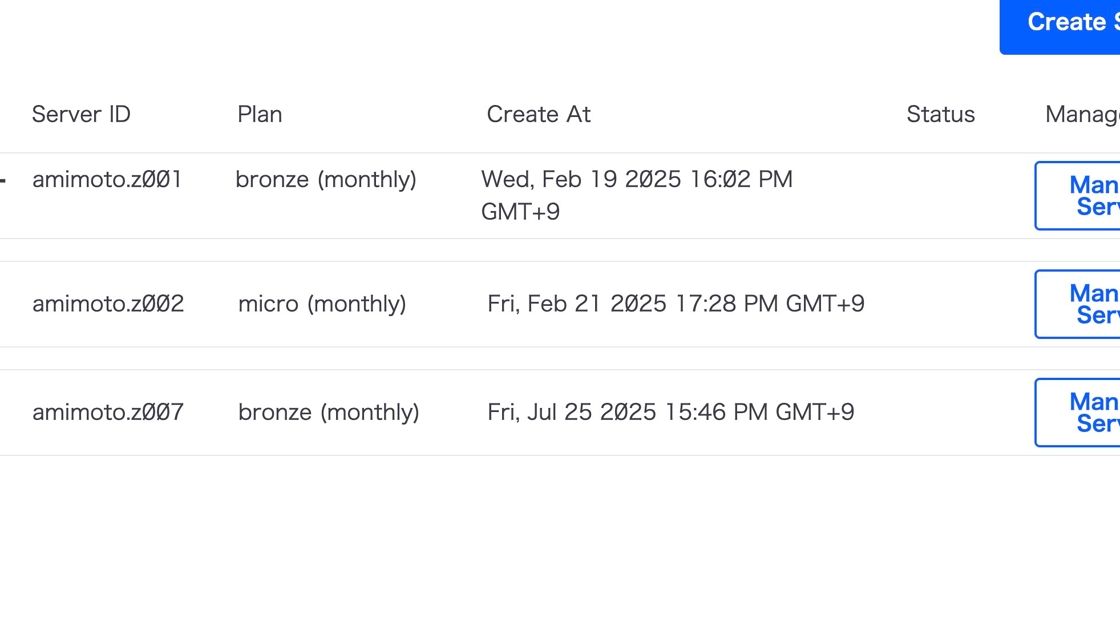
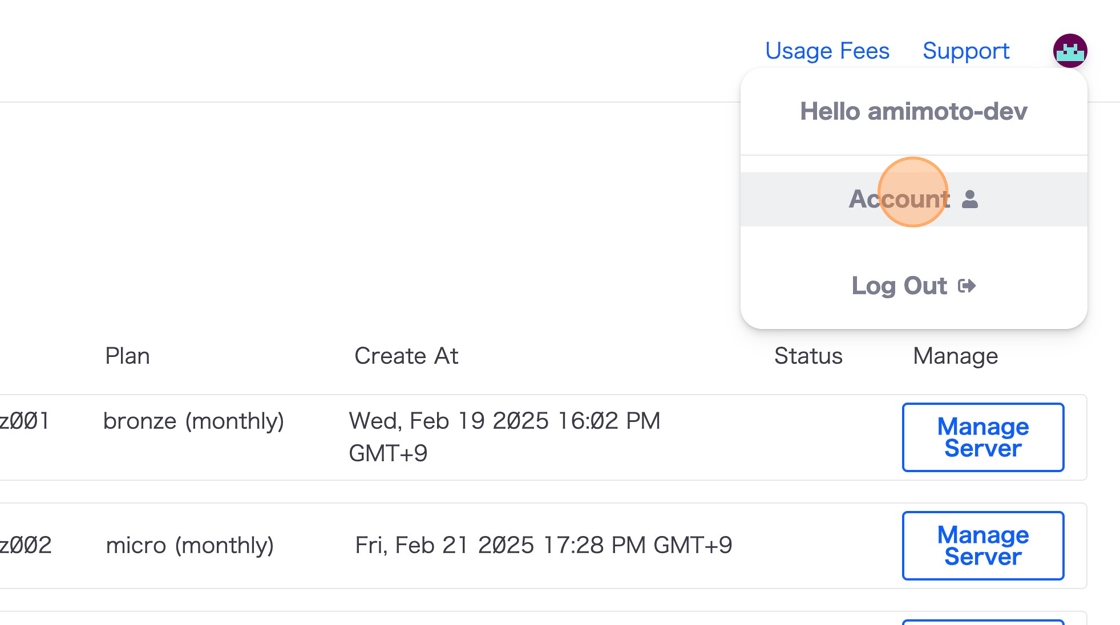
### 2. Click the Gravator

### 3. Select "Account"
### 4. Click "Account and Security"
[](https://ajeuwbhvhr.cloudimg.io/https://colony-recorder.s3.amazonaws.com/files/2025-09-03/5395eb11-a618-4235-8d3e-12af9c99b445/ascreenshot.jpeg?tl_px=0,122&br_px=1962,1219&force_format=jpeg&q=100&width=1120.0&wat=1&wat_opacity=0.7&wat_gravity=northwest&wat_url=https://colony-recorder.s3.us-west-1.amazonaws.com/images/watermarks/FB923C_standard.png&wat_pad=123,277)
### 6. Click "Account"

### 7. Click "Account and Security"

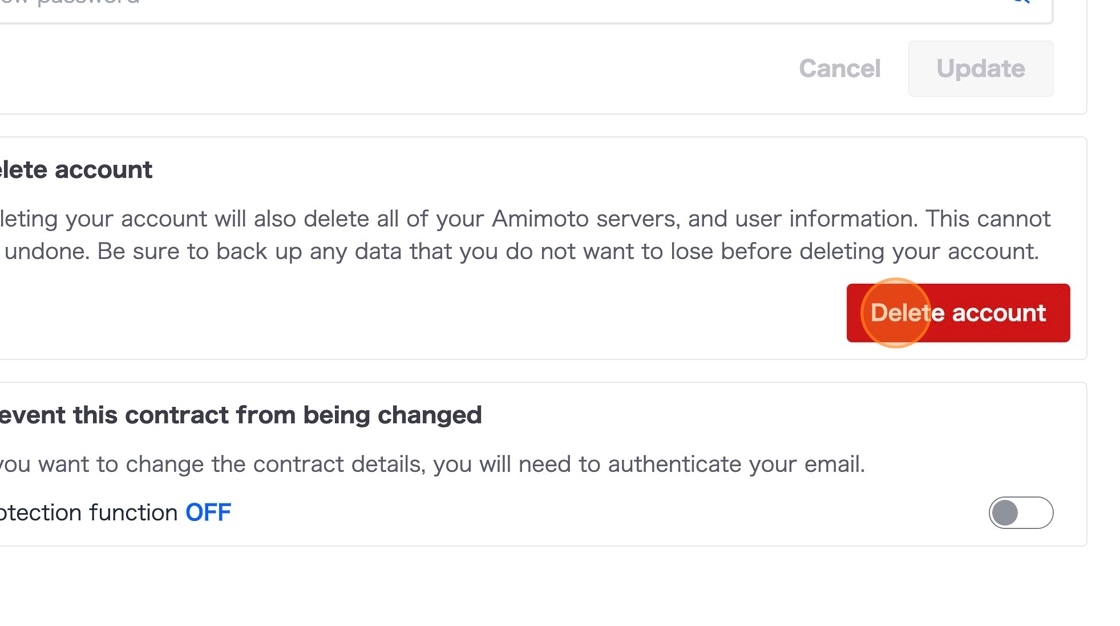
### 8. Make sure "Delete account" is activated
[](https://ajeuwbhvhr.cloudimg.io/https://colony-recorder.s3.amazonaws.com/files/2025-09-03/6978af47-d88f-422b-9bc0-1076e5cadad6/ascreenshot.jpeg?tl_px=708,855&br_px=2671,1952&force_format=jpeg&q=100&width=1120.0&wat=1&wat_opacity=0.7&wat_gravity=northwest&wat_url=https://colony-recorder.s3.us-west-1.amazonaws.com/images/watermarks/FB923C_standard.png&wat_pad=785,277)
Delete all of your sites on \`go.amimoto-ami.com\`, if you see the message "All servers must be deleted before your account can be closed"
[](https://ajeuwbhvhr.cloudimg.io/https://colony-recorder.s3.amazonaws.com/files/2025-09-03/124656b6-f5fc-4340-8b9a-995c82506663/ascreenshot.jpeg?tl_px=0,688&br_px=2746,2223&force_format=jpeg&q=100&width=1120.0&wat=1&wat_opacity=0.7&wat_gravity=northwest&wat_url=https://colony-recorder.s3.us-west-1.amazonaws.com/images/watermarks/FB923C_standard.png&wat_pad=650,277)
### 9. Click "Delete account" to proceed.
[](https://ajeuwbhvhr.cloudimg.io/https://colony-recorder.s3.amazonaws.com/files/2025-09-03/3064c80a-b4c3-428b-8493-0b6b117b964b/ascreenshot.jpeg?tl_px=783,863&br_px=2746,1960&force_format=jpeg&q=100&width=1120.0&wat=1&wat_opacity=0.7&wat_gravity=northwest&wat_url=https://colony-recorder.s3.us-west-1.amazonaws.com/images/watermarks/FB923C_standard.png&wat_pad=860,277)
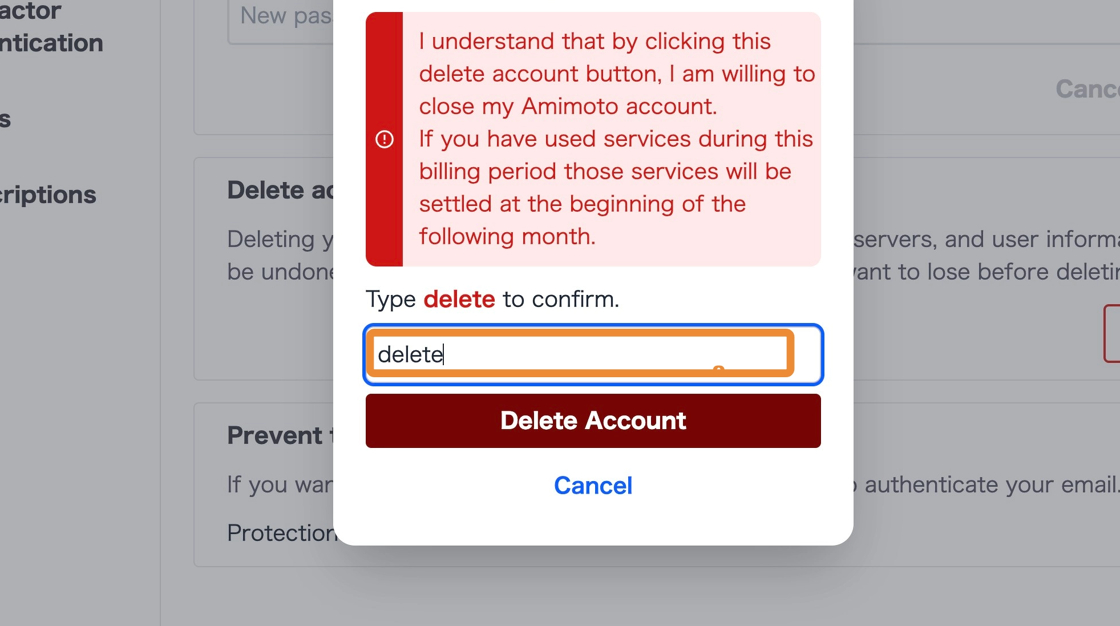
### 10. Type "delete"
[](https://ajeuwbhvhr.cloudimg.io/https://colony-recorder.s3.amazonaws.com/files/2025-09-03/6f1f8b2b-d5e2-4273-a7ed-db63bfa150e2/user_cropped_screenshot.webp?tl_px=333,827&br_px=2296,1924&force_format=jpeg&q=100&width=1120.0)
### 11. Click "Delete Account"
[](https://ajeuwbhvhr.cloudimg.io/https://colony-recorder.s3.amazonaws.com/files/2025-09-03/720acf4b-74b4-406a-864f-b605f87a632a/File.jpeg?tl_px=288,964&br_px=2250,2061&force_format=jpeg&q=100&width=1120.0&wat=1&wat_opacity=0.7&wat_gravity=northwest&wat_url=https://colony-recorder.s3.us-west-1.amazonaws.com/images/watermarks/FB923C_standard.png&wat_pad=519,312)
#### 12. Your Amimoto account has been deleted.
[](https://ajeuwbhvhr.cloudimg.io/https://colony-recorder.s3.amazonaws.com/files/2025-09-03/27410743-3bd5-4f36-b680-e8e04413fa02/screenshot.webp?tl_px=520,1969&br_px=1580,2561&force_format=jpeg&q=100&width=1059)
- [Amimoto Managed Hosting](https://knowledge.amimoto-ami.com/en/knowledge/amimoto-managed-hosting?hsLang=en#main-content)
- [Basics](https://knowledge.amimoto-ami.com/en/knowledge/amimoto-managed-hosting?hsLang=en#basics)
- [Amimoto Essential Training](https://knowledge.amimoto-ami.com/en/knowledge/amimoto-managed-hosting?hsLang=en#amimoto-essential-training)
- [Migration tips for AMIMOTO Managed Hosting](https://knowledge.amimoto-ami.com/en/knowledge/amimoto-managed-hosting?hsLang=en#migration-tips-for-amimoto-managed-hosting)
- [Amimoto Dashboard Tips](https://knowledge.amimoto-ami.com/en/knowledge/amimoto-managed-hosting?hsLang=en#amimoto-dashboard-tips)
- [Connecting to the Server](https://knowledge.amimoto-ami.com/en/knowledge/amimoto-managed-hosting?hsLang=en#connecting-to-the-server)
- [Account and Billing](https://knowledge.amimoto-ami.com/en/knowledge/amimoto-managed-hosting?hsLang=en#account-and-billing)
- [Trouble shooting](https://knowledge.amimoto-ami.com/en/knowledge/amimoto-managed-hosting?hsLang=en#trouble-shooting)
- [WordPress Plugins](https://knowledge.amimoto-ami.com/en/knowledge/amimoto-managed-hosting?hsLang=en#wordpress-plugins)
- [Tips for DNS Vendors](https://knowledge.amimoto-ami.com/en/knowledge/amimoto-managed-hosting?hsLang=en#tips-for-dns-vendors)
- [Email](https://knowledge.amimoto-ami.com/en/knowledge/amimoto-managed-hosting?hsLang=en#email)
- [CDN and Cache control](https://knowledge.amimoto-ami.com/en/knowledge/amimoto-managed-hosting?hsLang=en#cdn-and-cache-control)
- [Server & AWS Management](https://knowledge.amimoto-ami.com/en/knowledge/amimoto-managed-hosting?hsLang=en#server-aws-management)
- [Integration](https://knowledge.amimoto-ami.com/en/knowledge/amimoto-managed-hosting?hsLang=en#integration)
- [Development](https://knowledge.amimoto-ami.com/en/knowledge/amimoto-managed-hosting?hsLang=en#development)
- [Amimoto AMI](https://knowledge.amimoto-ami.com/en/knowledge/amimoto-ami?hsLang=en#main-content)
- [Getting Started with Amimoto-AMI](https://knowledge.amimoto-ami.com/en/knowledge/amimoto-ami?hsLang=en#getting-started-with-amimoto-ami)
- [Basics](https://knowledge.amimoto-ami.com/en/knowledge/amimoto-ami?hsLang=en#basics)
- [Connection to Amimoto AMI](https://knowledge.amimoto-ami.com/en/knowledge/amimoto-ami?hsLang=en#connection-to-amimoto-ami)
- [Tips](https://knowledge.amimoto-ami.com/en/knowledge/amimoto-ami?hsLang=en#tips)
- [FAQs](https://knowledge.amimoto-ami.com/en/knowledge/amimoto-ami?hsLang=en#faqs)
- [Trouble shooting](https://knowledge.amimoto-ami.com/en/knowledge/amimoto-ami?hsLang=en#trouble-shooting)
- [Getting Started with Amimoto JIN-KEI](https://knowledge.amimoto-ami.com/en/knowledge/amimoto-ami?hsLang=en#getting-started-with-amimoto-jin-kei)
- [Tips for JINKEI](https://knowledge.amimoto-ami.com/en/knowledge/amimoto-ami?hsLang=en#tips-for-jinkei)
- [Support](https://knowledge.amimoto-ami.com/en/knowledge/amimoto-ami?hsLang=en#support)
- [\[EN\] Amimoto Managed Hosting](https://knowledge.amimoto-ami.com/en/knowledge/en-amimoto-managed-hosting?hsLang=en#main-content)
- [Company and Guidelines](https://knowledge.amimoto-ami.com/en/knowledge/en-amimoto-managed-hosting?hsLang=en#company-and-guidelines)
- ホーム
- 製品
- 価格
- ブログ
- 会社
[](https://ja.amimoto-ami.com/)
Amimoto Help Center
Copyright © 2026, 株式会社デジタルキューブ